Convert Video to Text Online
Upload a video file, get a timestamped transcript, edit the text in the browser, and export clean notes or subtitle files.
Upload a video file, then click Transcribe.
How to Convert Video to Text
1. Upload your video
Add MP4, MOV, AVI, MKV, WEBM, and other common formats. Use it for interviews, webinars, lectures, tutorials, demos, and meeting videos.
2. Review the transcript with timestamps
NeatScribe generates editable text with timestamps, so you can check important sections, fix wording, and clean up the transcript quickly.
3. Export text or subtitle files
Download TXT, DOCX, or PDF for notes and documents, or export SRT and VTT when you need captions for your video project.
Why NeatScribe for video transcription
Works with common video formats
Process MP4, MOV, AVI, MKV, WEBM, and other common formats from tutorials, meetings, and interviews.
Editable transcript with timestamps
Review wording line by line and jump to key moments with timestamps when you need to verify details.
Export text and subtitle files
Download TXT, DOCX, or PDF for documents, or export SRT and VTT when your transcript needs captions.
Local video files, not only links
Start from a local video file instead of a URL when your source material comes from meetings, recordings, or exports.
Supports multilingual video projects
Transcribe spoken content across multiple languages and accents, then keep the output easy to review.
Ready for notes, publishing, and subtitles
Go from raw video to notes, articles, subtitles, and internal documentation in one place.
Turn videos, webinars, and interviews into text
Upload common video formats and convert spoken content into text without switching tools or retyping long recordings by hand.
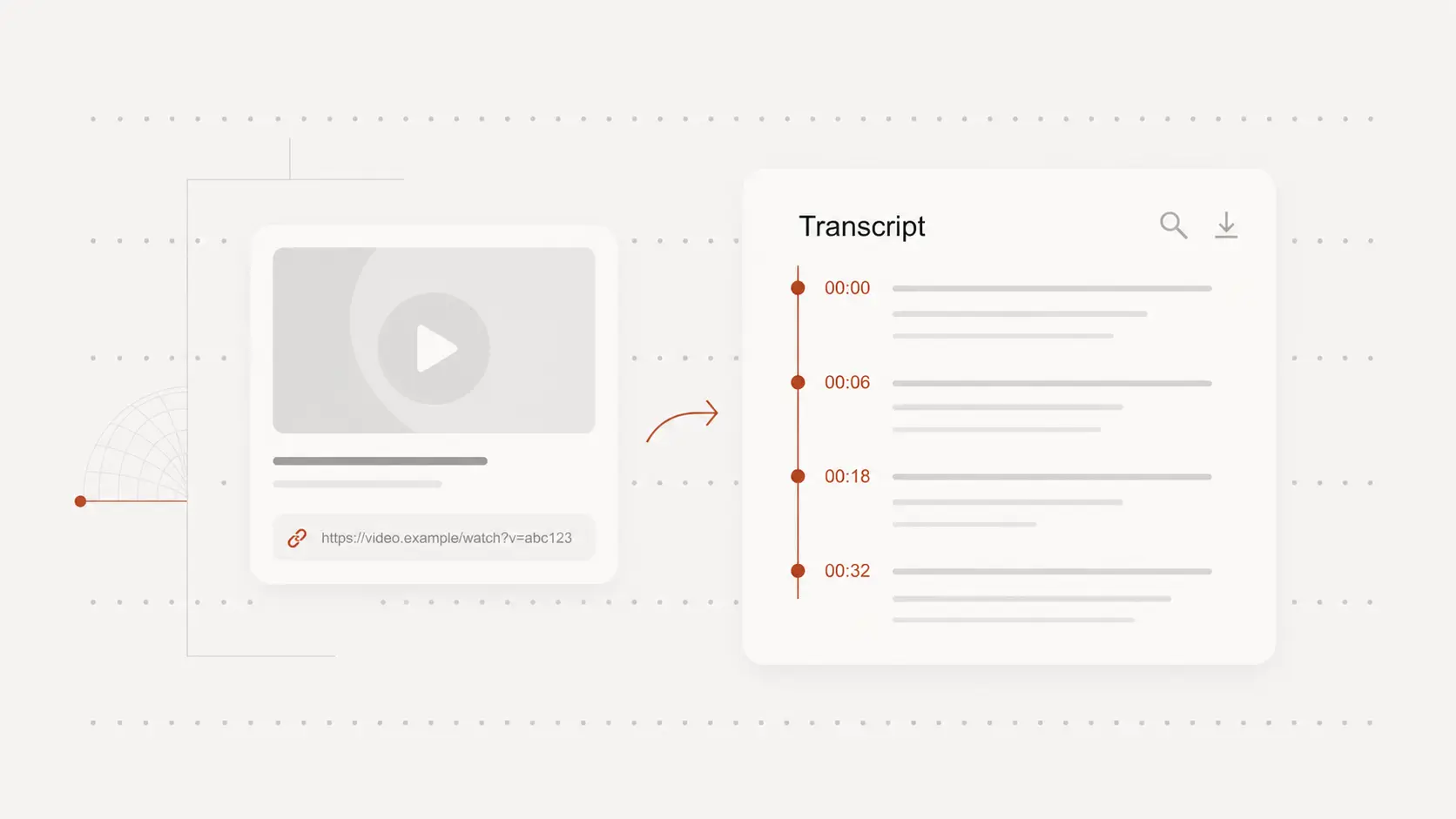
Edit transcripts with timestamps before you share them
Open the transcript in the browser, jump to key moments with timestamps, and clean up the wording before publishing or sending the result.
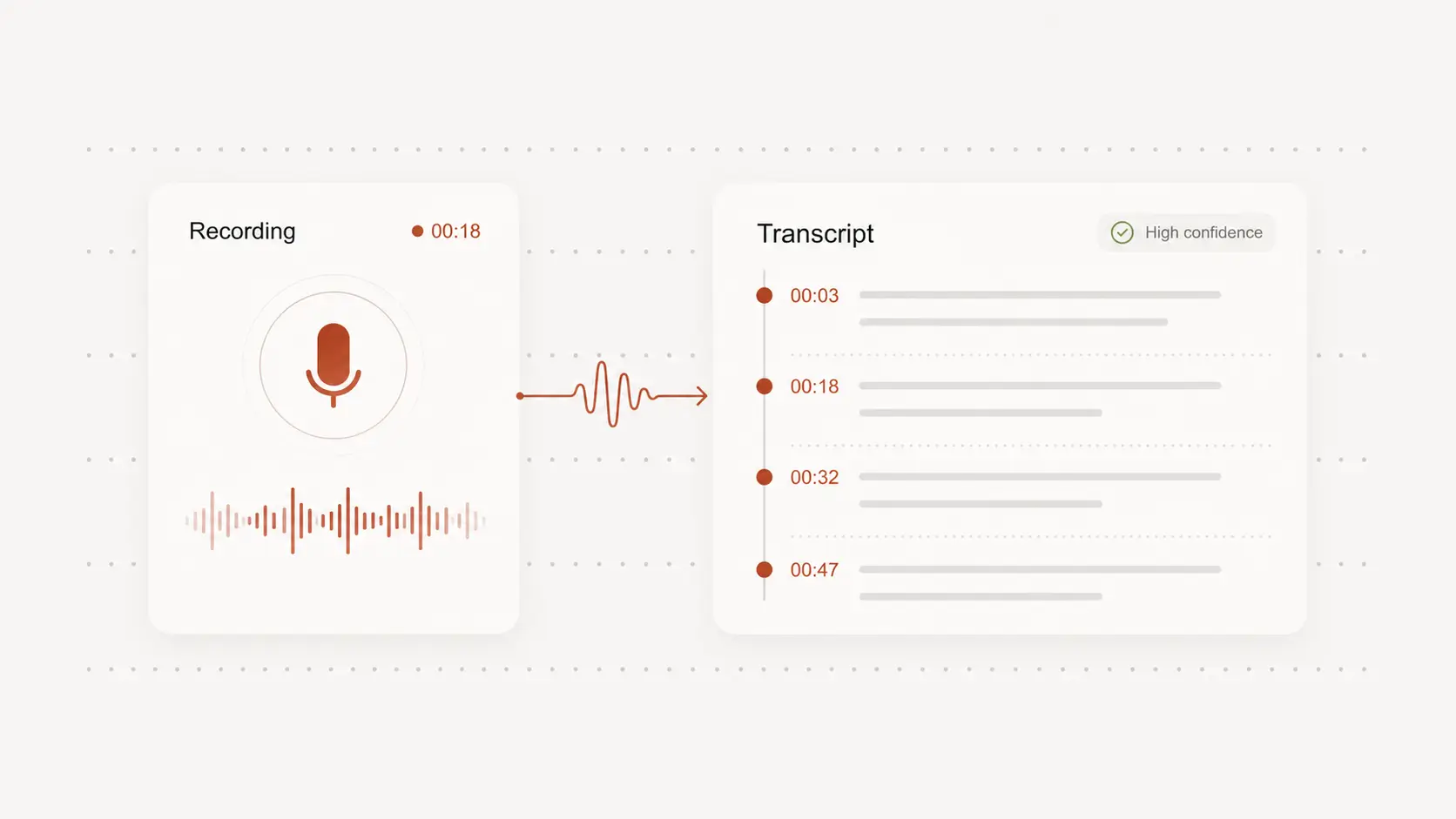
Export clean text or subtitle-ready files
Use the transcript as meeting notes, research notes, article drafts, or export SRT and VTT when the next step is subtitles.
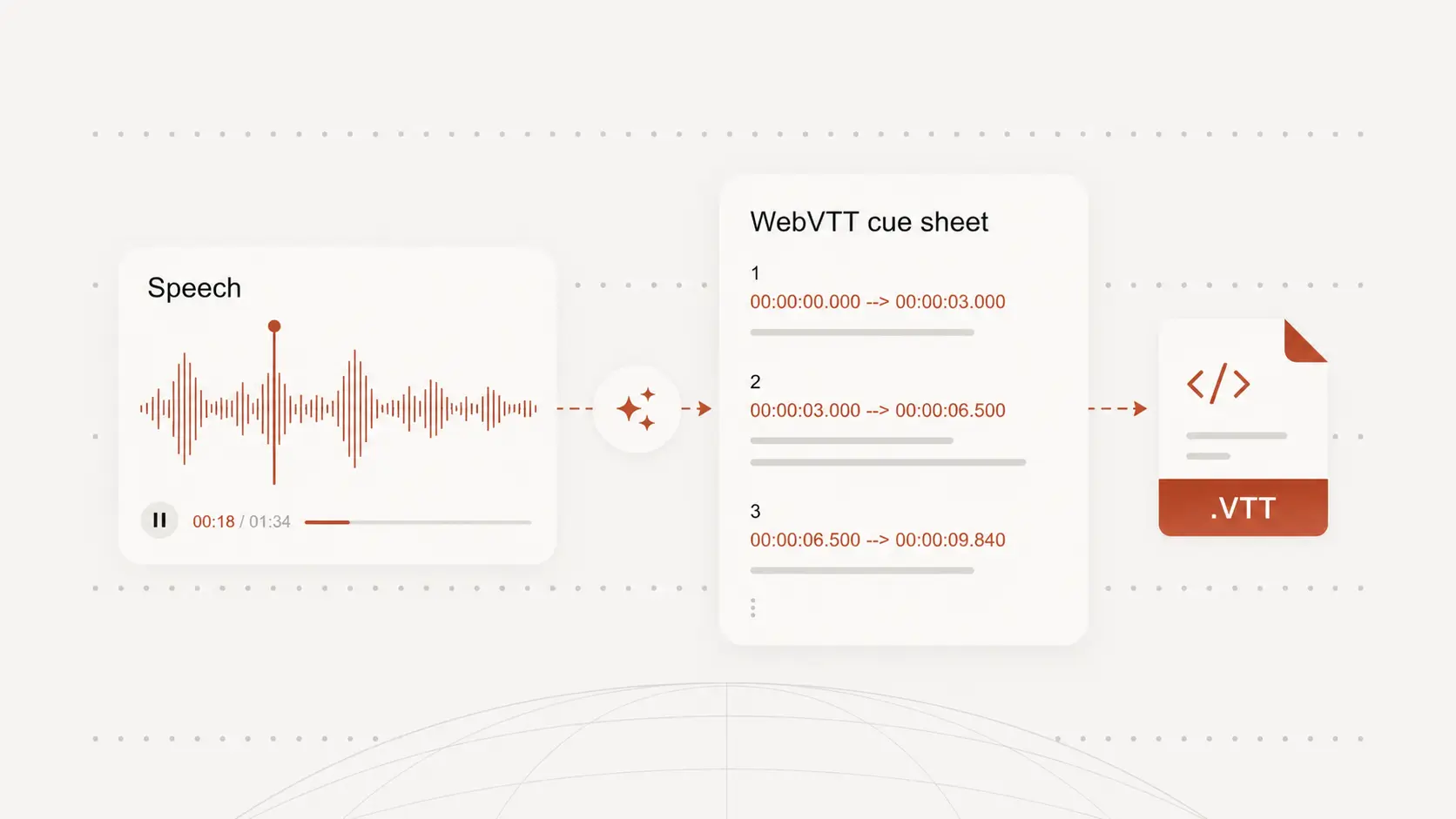
Video to text for real work
Meetings, interviews, and calls
Turn recorded meetings and interviews into searchable transcripts your team can review and share.
Webinars, tutorials, and classes
Convert long-form video content into notes, summaries, and draft captions without replaying the whole file.
Publishing and subtitles
Reuse transcript text for articles, documentation, subtitles, and internal knowledge capture.
Video to Text FAQ
Common questions about converting video files into text.