Convert M4A to Text Online
Upload an M4A file, review the timestamped transcript in the browser, and export clean text, notes, or subtitle files.
Upload an M4A file, then click Transcribe.
How to Convert M4A to Text
1. Upload your M4A file
Add M4A recordings from meetings, interviews, voice notes, lectures, and other spoken recordings.
2. Review and clean up the transcript
NeatScribe generates editable text with timestamps, so you can jump to key moments, fix wording, and make the transcript ready to use.
3. Export text or subtitle files
Download TXT, DOCX, or PDF for notes and documents, or export SRT and VTT when your M4A transcript also needs captions.
Why NeatScribe for M4A transcription
Start from uploaded M4A files
Start directly from uploaded M4A files when your source material lives in that format.
Editable transcript with timestamps
Review wording line by line and jump to exact moments when you need to verify details.
Export text and subtitle files
Download TXT, DOCX, PDF, SRT, and VTT from the same M4A transcript.
Strong fit for spoken recordings
Use it for meetings, interviews, lectures, voice notes, and other recorded speech.
From upload to export in one place
Move from uploaded M4A to final transcript output without switching tools.
Supports multilingual M4A projects
Transcribe M4A audio across many languages while keeping output easy to review and reuse.
Turn M4A recordings into text
Upload M4A files directly and convert spoken content into editable text without manual retyping.
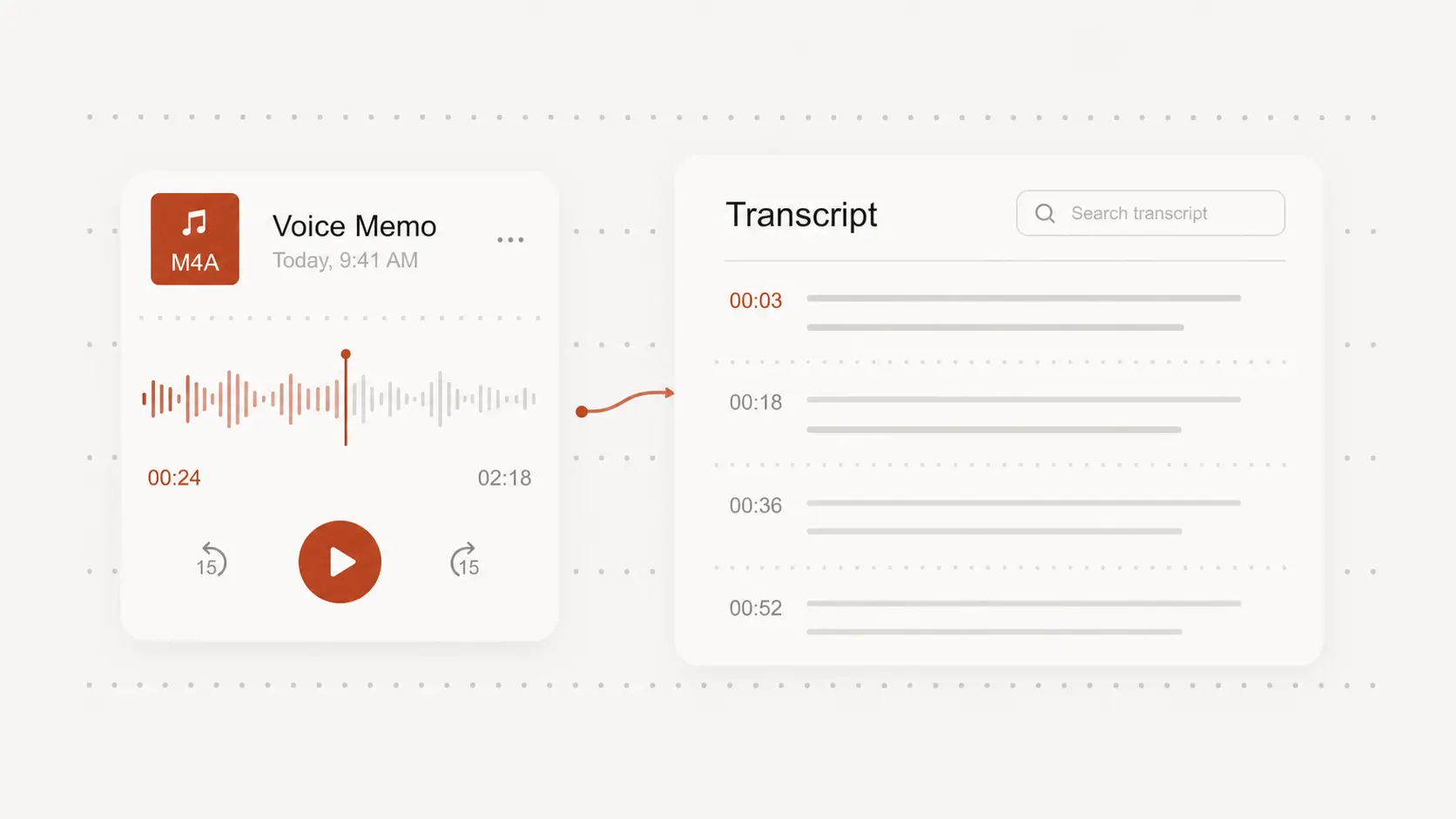
Review transcript wording with timestamps before export
Open the M4A transcript in the browser, jump by timestamp, and clean up wording before sharing or publishing the result.
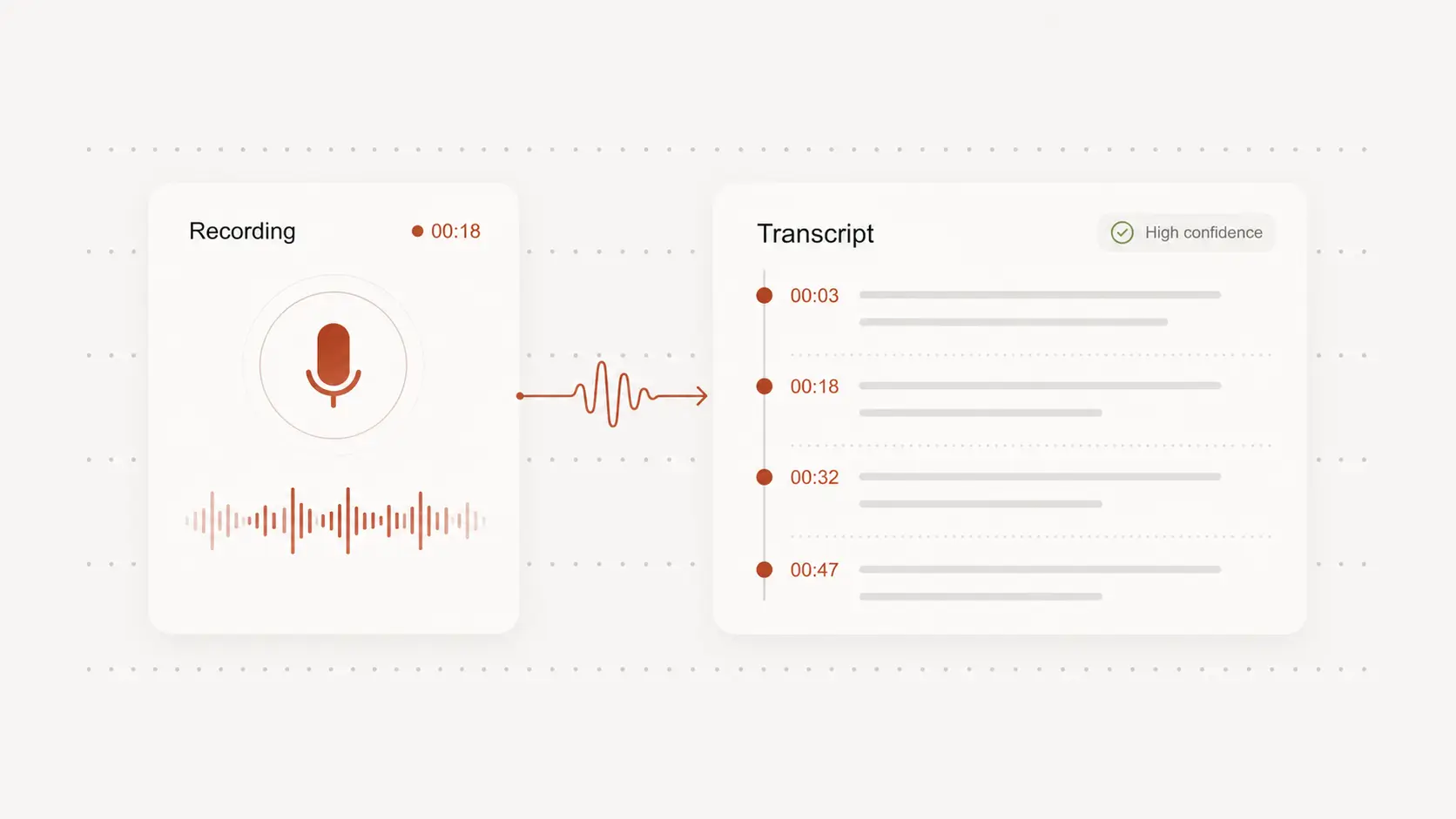
Export transcript text or subtitle-ready files
Reuse the M4A transcript for notes, summaries, documents, or captions with text and subtitle exports in one place.
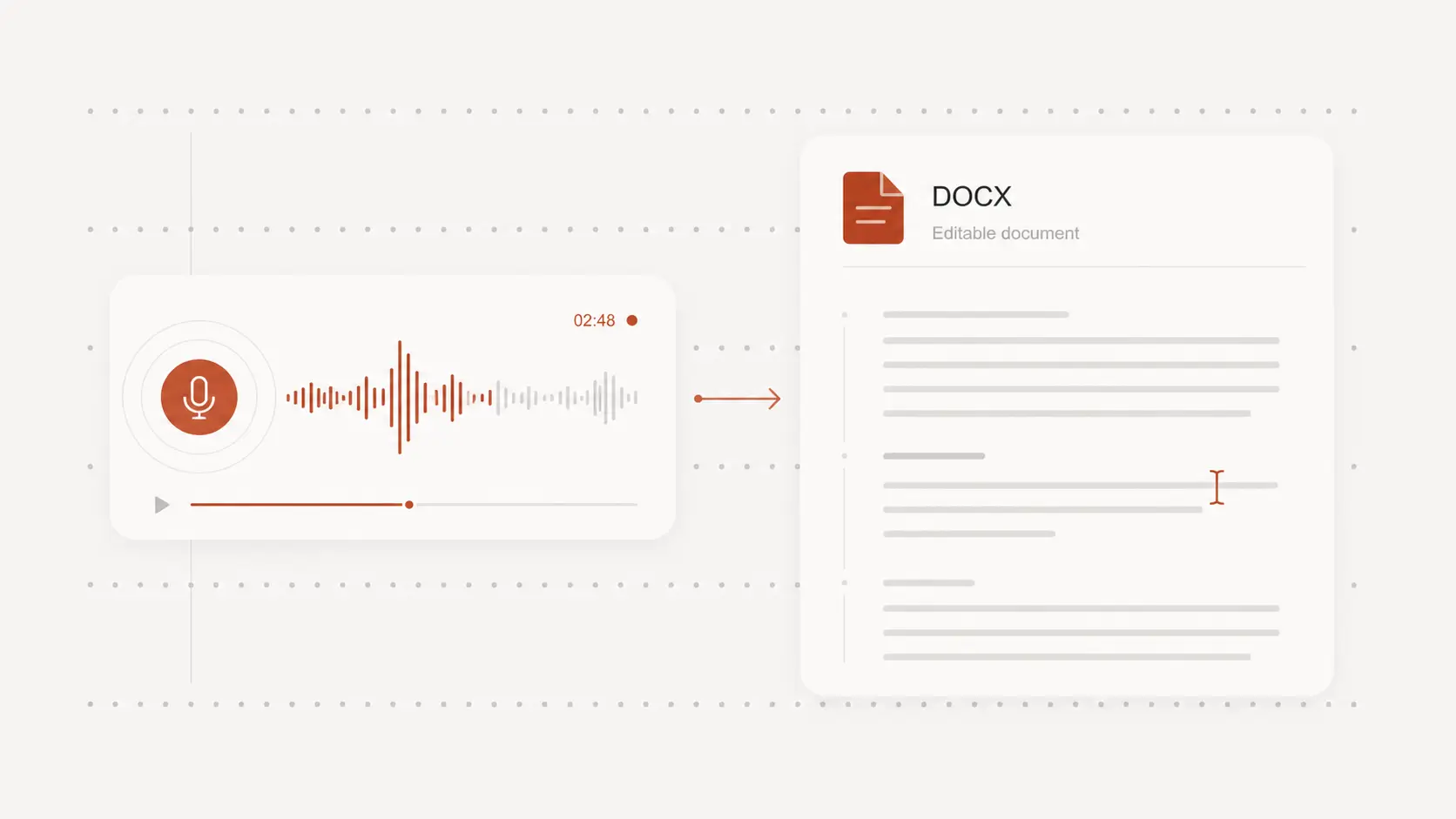
M4A to text for everyday audio
Mobile recordings and voice notes
Convert M4A recordings into editable text when spoken content starts from phones or lightweight recorders.
Interviews and meetings
Turn recorded conversations into searchable transcripts without replaying each section manually.
Lectures and research audio
Generate transcripts from M4A files for notes, analysis, and publishing.
M4A to Text FAQ
Common questions about converting M4A files into text.