Convert MP3 to SRT Online
Upload an MP3 file, generate timestamped subtitles, review the captions in the browser, and export an SRT file ready to publish.
Upload an MP3 file, then click Transcribe to generate SRT.
How to Convert MP3 to SRT
1. Upload your MP3 file
Add MP3 recordings from interviews, podcasts, meetings, voice notes, and other spoken recordings.
2. Review subtitle timing and wording
NeatScribe generates timestamped captions, so you can check each subtitle line, fix wording, and review timing before export.
3. Export the SRT file
Download an SRT subtitle file that is ready for editing, caption review, publishing, or team delivery.
Why use NeatScribe for MP3 to SRT
MP3 audio ready for subtitles
Start directly from MP3 files when the output you need is an SRT subtitle file.
Review subtitle timing in the browser
Edit caption lines and inspect timestamps before exporting the final SRT file.
Export a clean SRT file
Download subtitle output in the standard SRT format used in common caption projects.
Strong fit for spoken MP3 recordings
Use it for interviews, podcasts, meetings, lectures, and voice notes that need subtitle timing.
From upload to subtitle export
Move from MP3 upload to final SRT output without stitching together separate conversion tools.
Supports multilingual subtitle projects
Generate subtitle output across many languages while keeping review and export straightforward.
Generate SRT from MP3 without extra conversion steps
Upload MP3 files directly and turn spoken audio into subtitle-ready captions in one place.
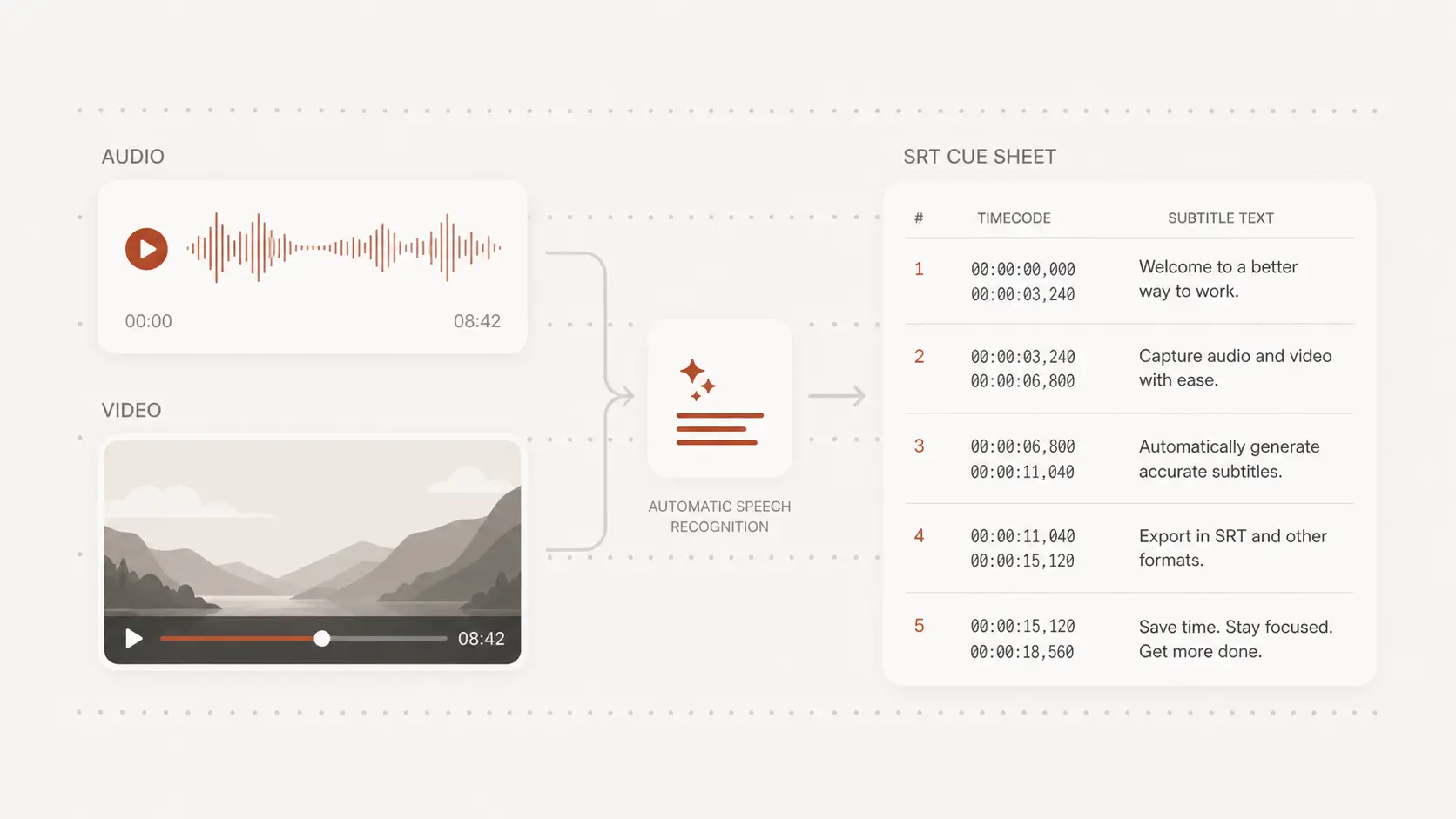
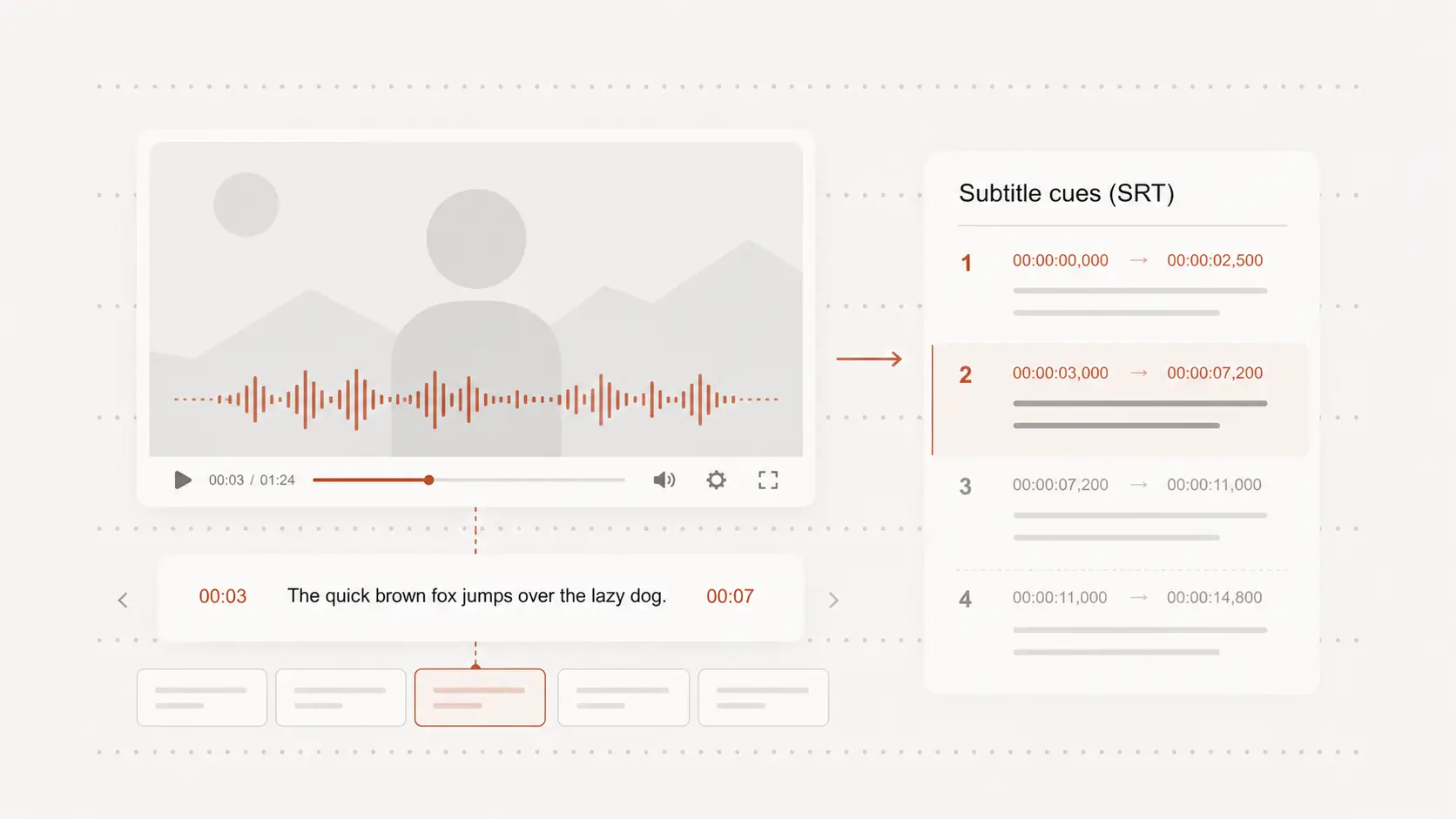
Review MP3 subtitle lines with timestamps before export
Inspect each caption, jump through timestamps, and clean up subtitle wording before you download the SRT output.
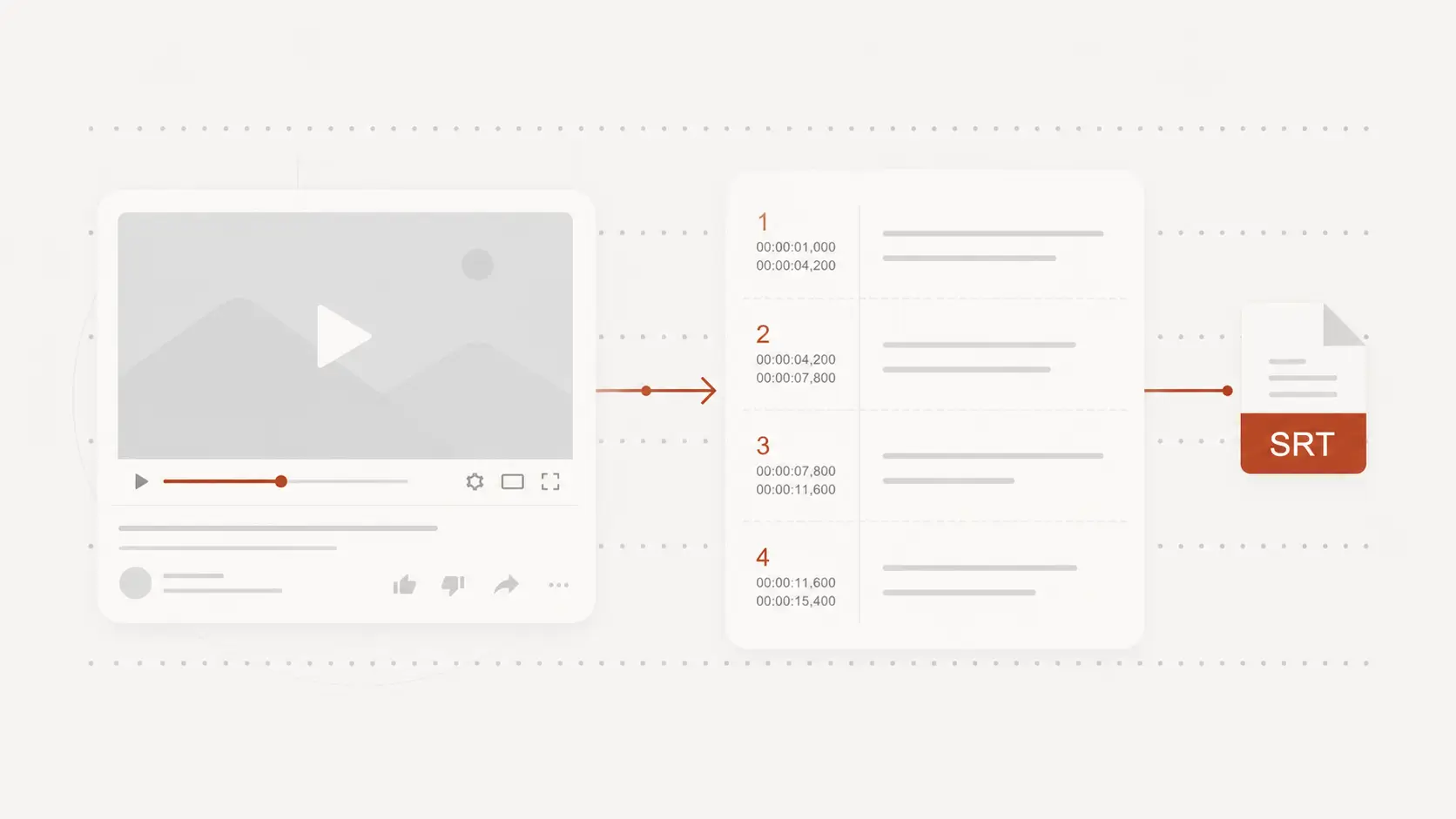
Export an SRT file ready for editing and publishing
Use the generated SRT file for subtitle projects, video editing, social publishing, and delivery to teammates or clients.
MP3 to SRT for subtitle projects
Podcasts and repurposed clips
Turn MP3 episodes and spoken clips into SRT subtitles for video editing and publishing.
Interviews and recorded conversations
Create subtitle timing from MP3 interview files when you need caption output instead of transcript-only text.
Training audio and voice recordings
Generate SRT files from spoken MP3 content for education, explainers, and internal media projects.
MP3 to SRT FAQ
Common questions about converting MP3 files into SRT subtitles.