Where can I find the transcript of a Teams meeting?
A location-focused guide to finding Microsoft Teams transcripts in chat, recap, calendar details, OneDrive, or SharePoint.
The short answer
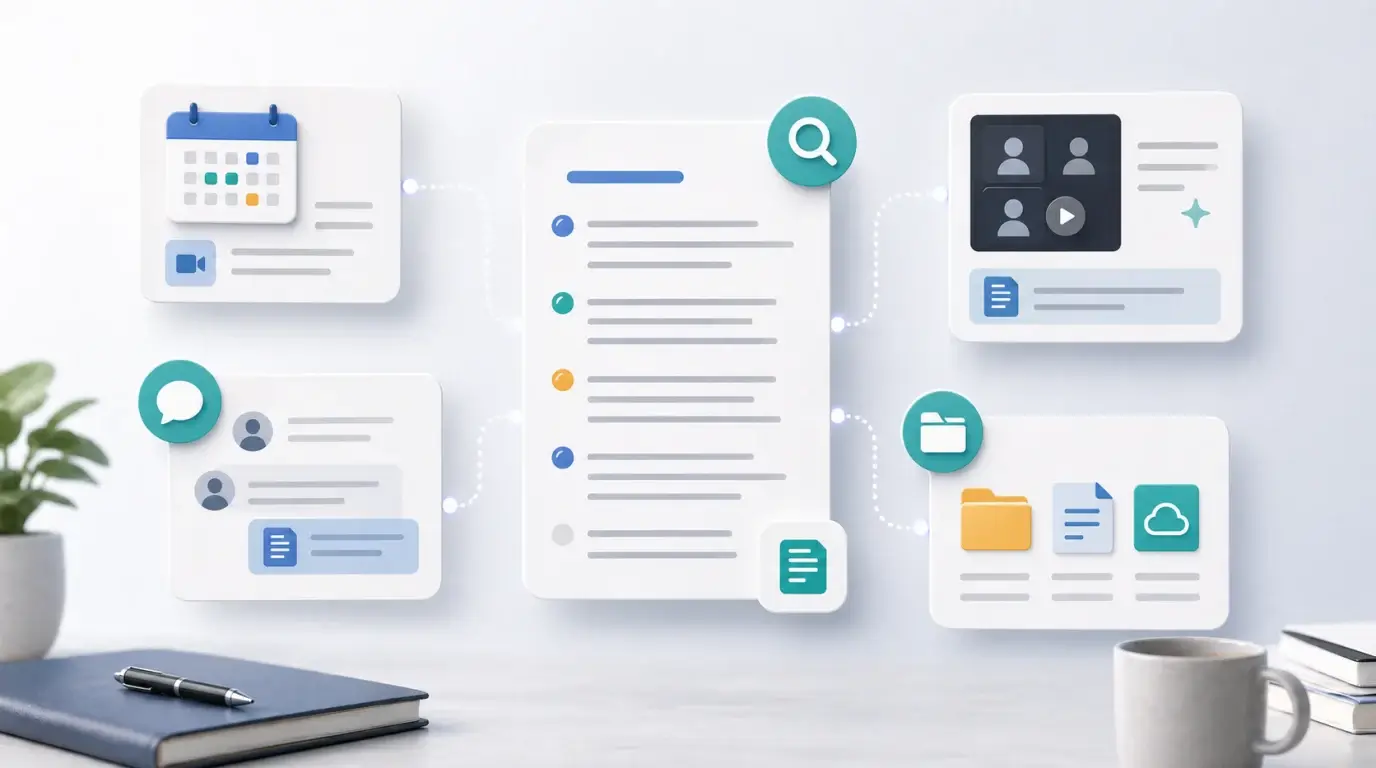
You can usually find a Teams meeting transcript in the meeting chat, meeting recap, or the meeting’s calendar details. If a recording was created, related files may be stored in OneDrive or SharePoint depending on the meeting type.
The transcript only exists if transcription was started and allowed by your organization’s settings.
Check the meeting chat
Open Teams, go to Chat, and select the meeting conversation. Look for the recap area, recording, or transcript link after the meeting ended.
If you joined from another organization, you may not have the same access as internal participants. Ask the organizer to share the transcript if policy allows it.
Check the calendar event
Open the meeting from your Teams calendar and look for Recap or Details. This view often collects the recording, transcript, attendance, shared files, and AI recap features if available.
If the meeting was a channel meeting, check the channel posts and the team’s SharePoint files. If it was a private meeting, check the organizer’s or recorder’s OneDrive context.
If you still cannot find it
The transcript may have expired, been deleted, never been created, or be blocked by permissions. Your IT admin may also control whether transcription is allowed and how long transcripts are retained.
If you can access the meeting recording, use NeatScribe to generate a new transcript from the recording file.
Ask the right person
If you cannot find the transcript, the organizer is usually the first person to ask. They may have access to the meeting recap, recording, or storage location that attendees cannot see.
In company environments, an IT admin may also control transcription availability, retention, and sharing permissions.
Keep transcripts organized
Once you find the transcript, move the important information into a durable workspace: meeting notes, project docs, CRM notes, or a task tracker. A transcript is useful, but it is not a substitute for decisions and action items.
For repeated meetings, create a naming convention so transcripts are easy to find later.
More Posts

What is research in film production?
Learn how research supports film production, from story and character work to locations, visuals, interviews, and accuracy.


How to add captions in iMovie
Learn how to add caption-like text in iMovie, what the app can and cannot do, and how to keep captions readable.
What is an SRT file?
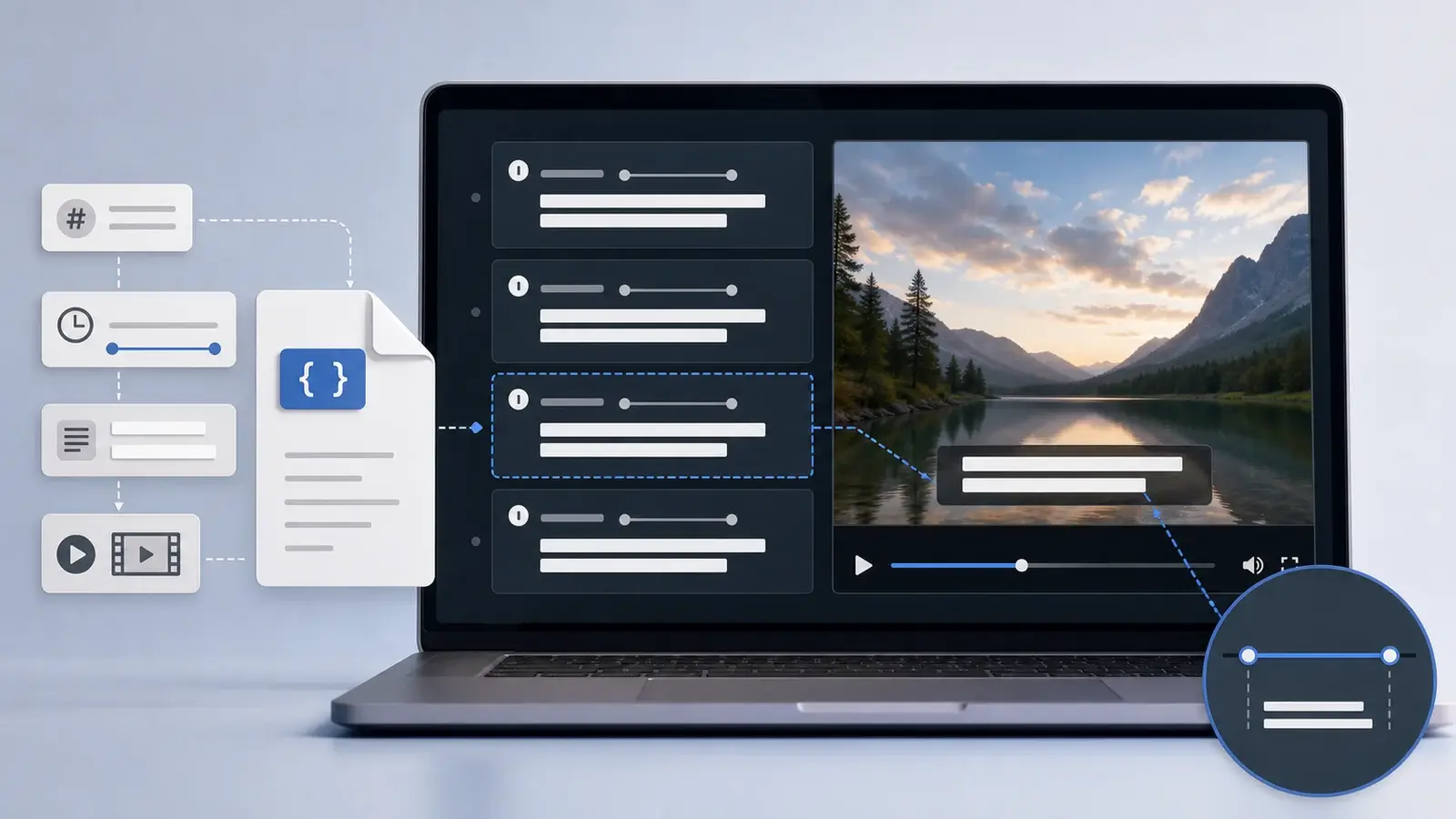
Learn what an SRT file is, what its timestamps mean, and how this plain text subtitle format is commonly used.