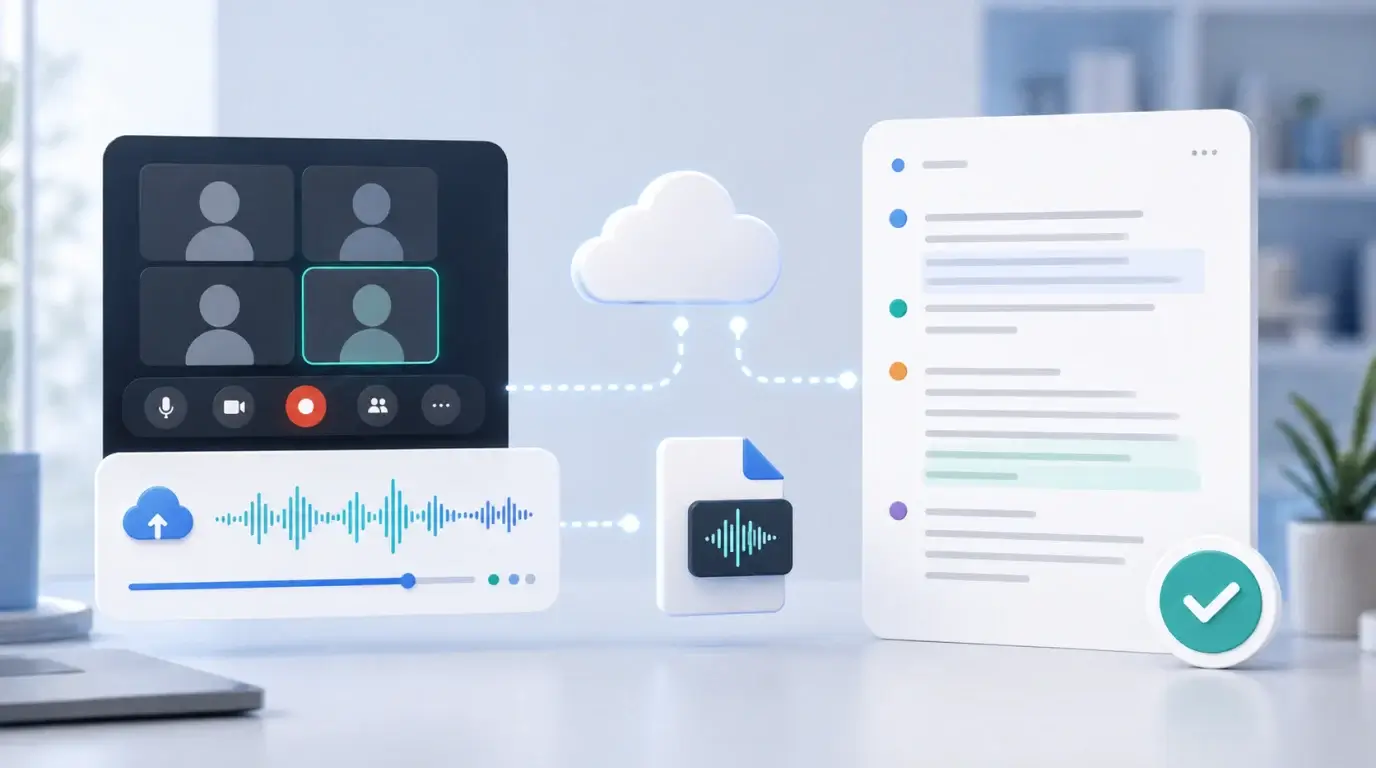
How to get Zoom transcript after meeting
Learn how Zoom cloud recording transcripts work, where to find the VTT file, and what to do when no transcript was generated.
The short answer
You can get a Zoom transcript after a meeting if the meeting was cloud recorded and audio transcript generation was enabled for that recording. Zoom saves audio transcripts as VTT files for cloud recordings in supported accounts and settings.
If the meeting was only recorded locally, or if transcript generation was not enabled, Zoom may not create a transcript automatically.
Where to find it
Sign in to the Zoom web portal and open Recordings. Choose Cloud Recordings, select the meeting, and look for the audio transcript file or transcript view next to the recording files.
If the transcript is still processing, wait and refresh later. Transcript processing can finish after the video recording itself is available.
What if it is missing?
Check whether cloud recording was used, whether audio transcript was enabled in recording settings, and whether your account type or admin settings allow the feature.
If you only have a local recording file, upload the audio or video to NeatScribe. This is also useful when you need a cleaner transcript than the default Zoom output.
Clean up before sharing
Zoom transcripts can include recognition errors, missing speaker names, and incorrect punctuation. Review the transcript before sending it to clients, students, teammates, or publishing it.
Pay special attention to names, decisions, deadlines, and any statement that could be misunderstood if transcribed incorrectly.
Cloud recording matters
Zoom’s built-in post-meeting transcript workflow is tied to cloud recording settings. If the meeting was recorded locally to your computer, Zoom may give you audio and video files but not the same automatic cloud transcript output.
That is why local recordings often need a separate transcription step.
Better Zoom transcript habits
Before the meeting, confirm whether cloud recording and audio transcript generation are enabled. During the meeting, speak clearly, reduce background noise, and ask participants not to talk over each other.
After the meeting, review the transcript before sharing. Meeting transcripts often contain decisions, names, and deadlines, so small errors can create real confusion.
More Posts

What is research in film production?
Learn how research supports film production, from story and character work to locations, visuals, interviews, and accuracy.

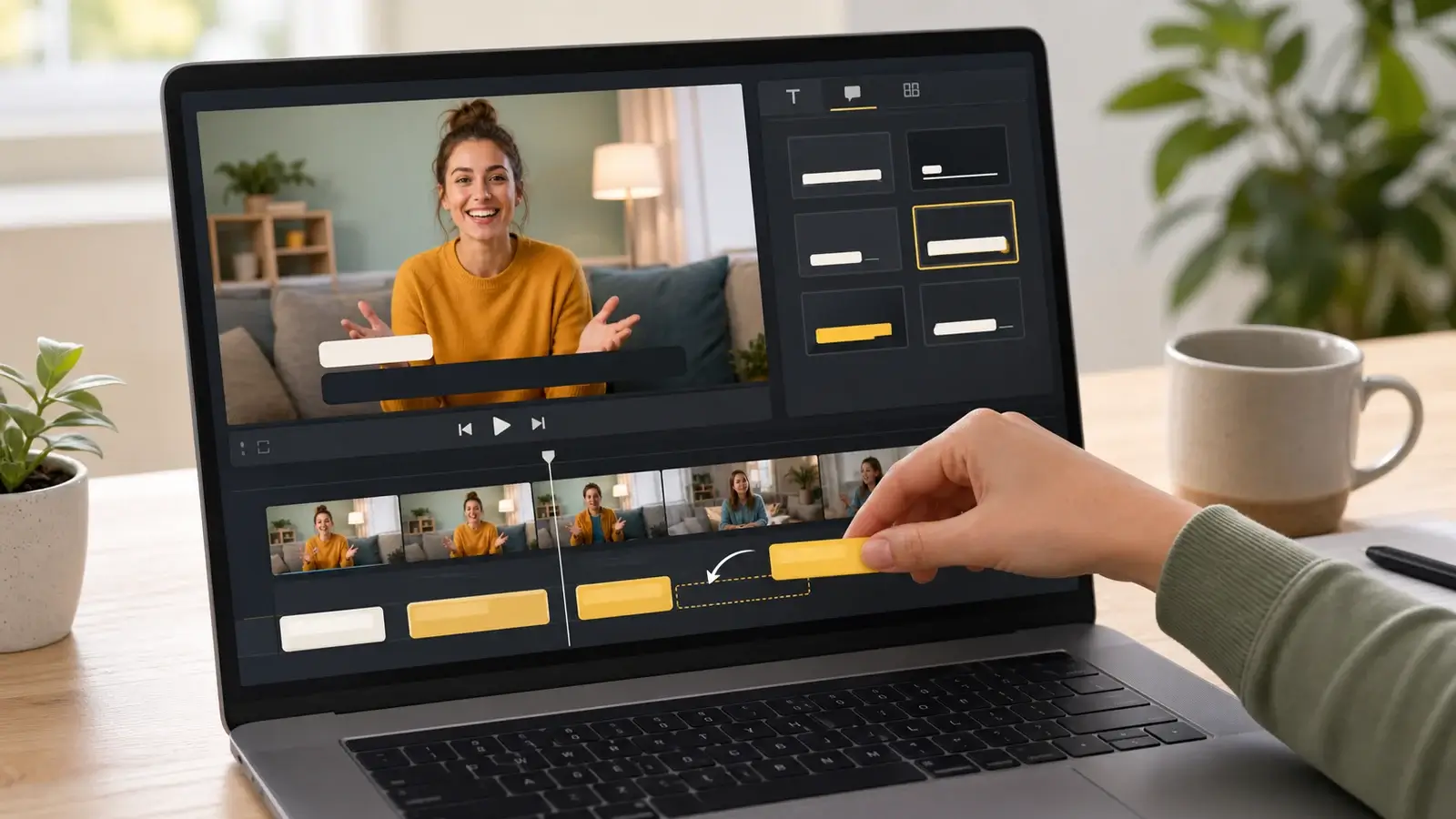
How to add captions in iMovie
Learn how to add caption-like text in iMovie, what the app can and cannot do, and how to keep captions readable.
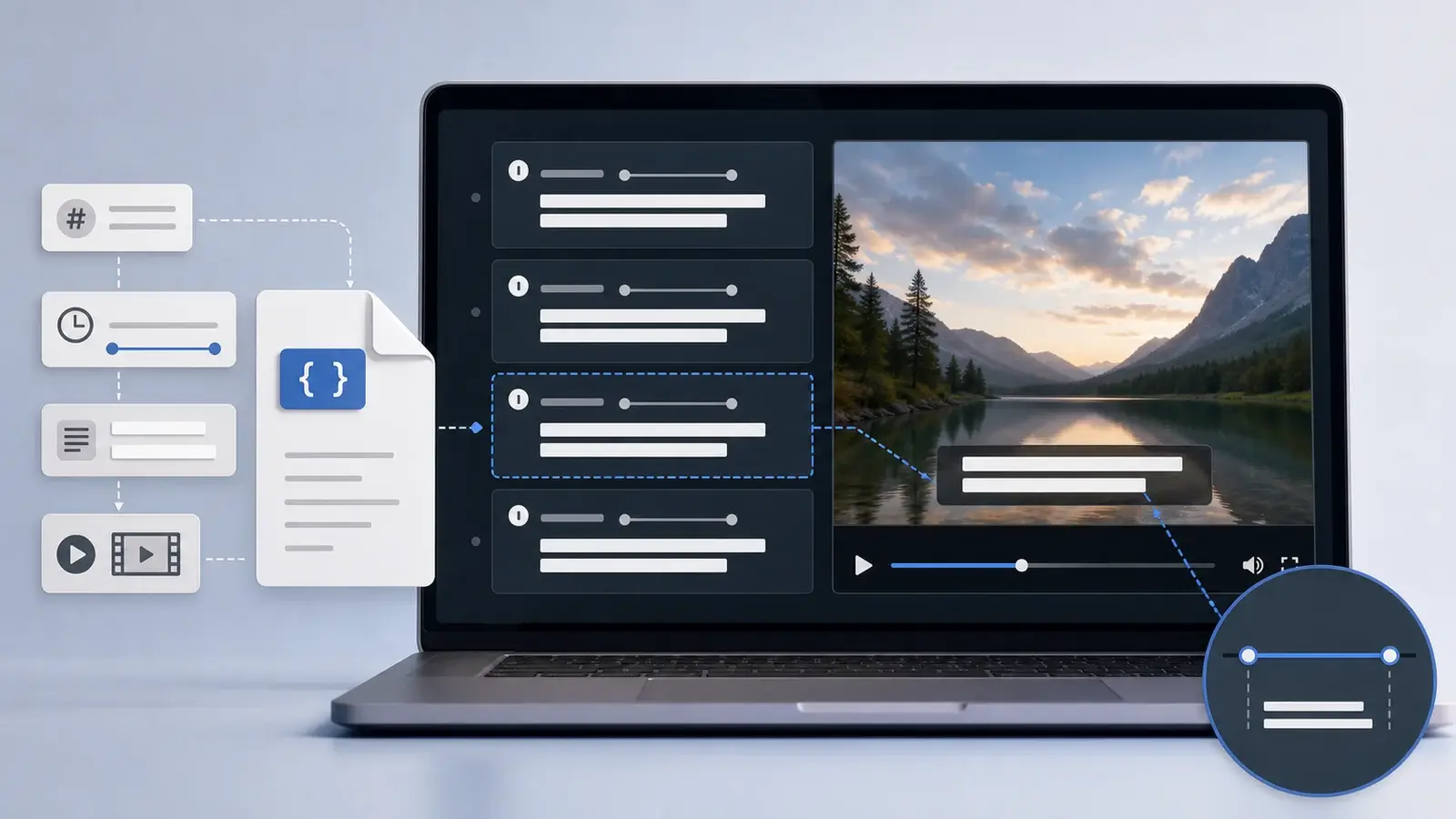
What is an SRT file?
Learn what an SRT file is, what its timestamps mean, and how this plain text subtitle format is commonly used.