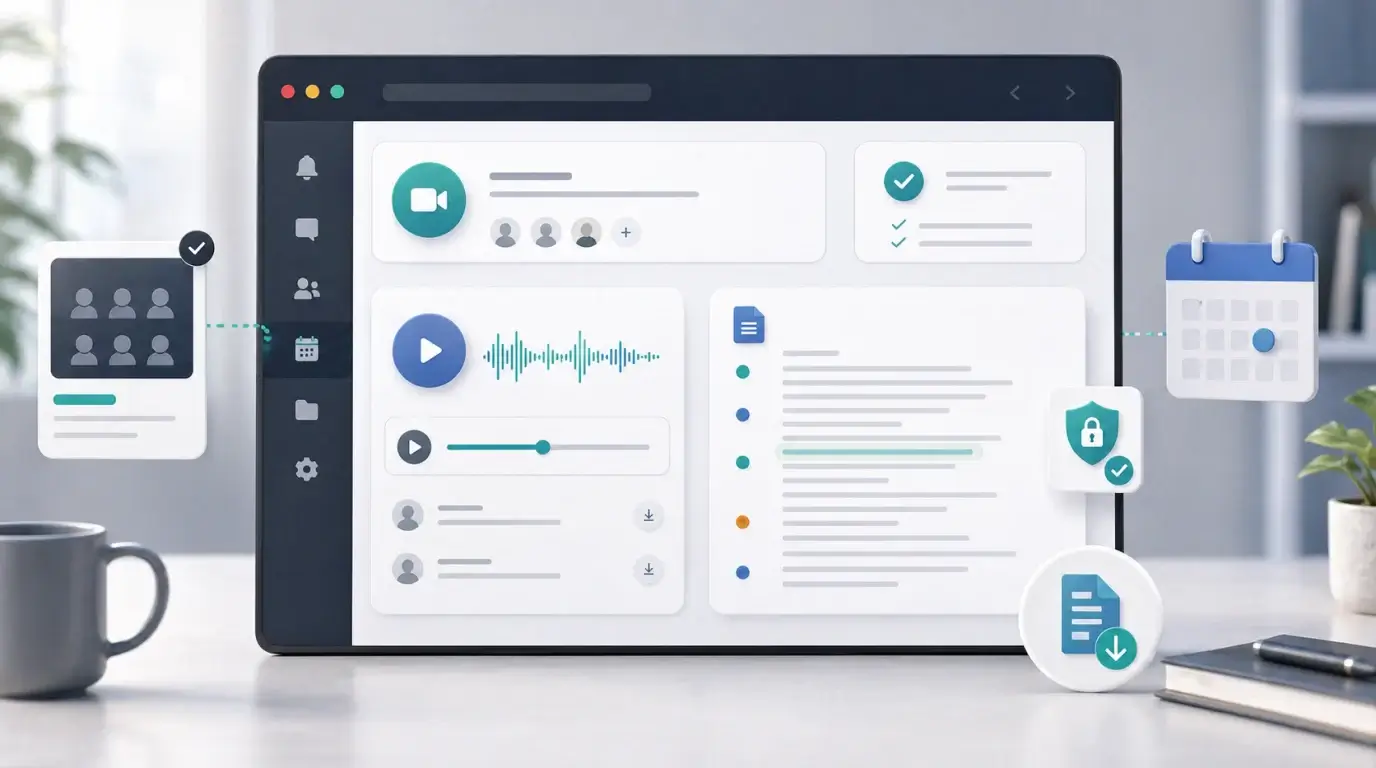
How to find transcript after Teams meeting ends
Learn where Microsoft Teams meeting transcripts appear after a meeting and what to do if you cannot find one.
The short answer
After a Microsoft Teams meeting ends, the transcript is usually available from the meeting chat, meeting recap, or the meeting details, but only if transcription was turned on and your organization allows it.
If nobody started transcription, or if your admin policy disables it, Teams may not have a transcript to show after the meeting.
Where to look first
Open the Teams meeting chat and look for the meeting ended or recap area. If a transcript exists and you have permission, it may appear with the recording and other meeting artifacts.
You can also open the meeting from your Teams calendar and check the recap or details tab. In newer Teams experiences, recap is often the central place for recording, transcript, notes, and related files.
Why you may not see it
You may not have permission, the meeting may have been hosted by another organization, transcription may not have been started, or the organizer’s retention settings may have removed it.
Channel meetings and private meetings can also store files differently. Recordings are commonly stored in OneDrive or SharePoint, depending on how the meeting was scheduled.
What to do next
Ask the organizer to check the meeting recap and file storage. If there is a recording but no transcript, export the recording or audio file if you have permission and upload it to NeatScribe to generate a transcript.
For future meetings, turn on transcription at the start and confirm that participants know transcription is running.
Plan for future meetings
If transcripts matter, make transcription part of your meeting setup. Confirm the organizer, recording, transcription setting, and participant notice before the meeting begins.
After the meeting, save the transcript in the same place as notes, decisions, and follow-up tasks. This prevents the transcript from getting lost in chat history.
If you only have the recording
A recording is still useful. Export or download it if you have permission, then upload it to a transcription tool. This can recover the meeting text even when Teams did not create a transcript automatically.
For important meetings, keep both the transcript and the original recording until the notes are finalized.
More Posts

What is research in film production?
Learn how research supports film production, from story and character work to locations, visuals, interviews, and accuracy.


How to add captions in iMovie
Learn how to add caption-like text in iMovie, what the app can and cannot do, and how to keep captions readable.
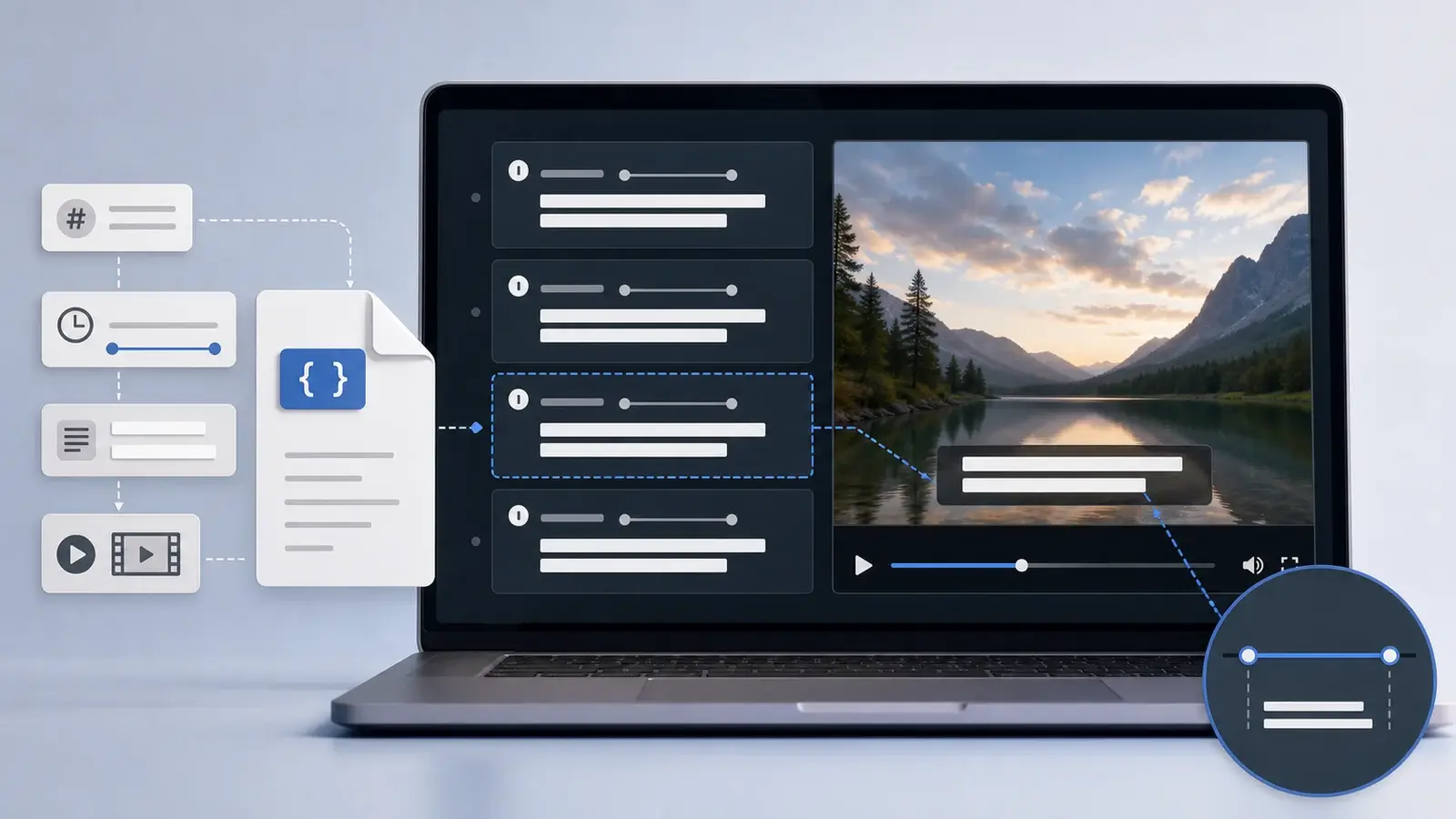
What is an SRT file?
Learn what an SRT file is, what its timestamps mean, and how this plain text subtitle format is commonly used.