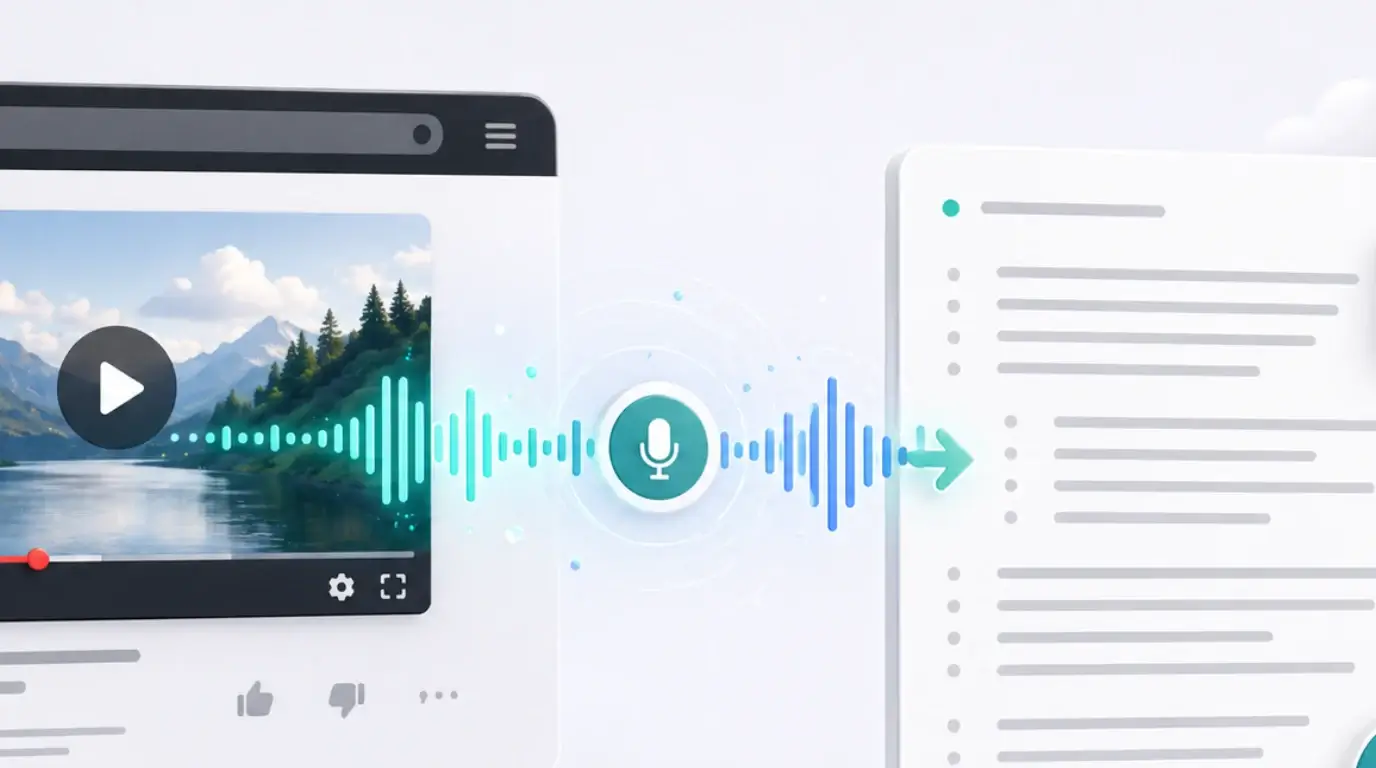
How to extract text from YouTube video online free
A safe workflow for extracting text from a YouTube video using built-in transcripts or a free online transcription path.
The short answer
The free way to extract text from a YouTube video is to use YouTube’s built-in transcript when it is available. Open the transcript panel, copy the text, and clean it up in your notes.
If the transcript is missing, you need to generate one from the video’s audio. Only do this for videos you own, have permission to process, or are allowed to use under the relevant rules.
Method 1: Use the built-in transcript
Open the YouTube video and look for “Show transcript.” If the transcript appears, search it, copy the relevant sections, and click timestamps to verify quotes against the original audio.
This method costs nothing and avoids uploading the video to another service.
Method 2: Transcribe the audio
If you own the video or have permission to process it, use NeatScribe to convert it to text. You can use the YouTube transcription workflow directly, or upload the original video/audio file if you already have it.
After NeatScribe generates the transcript, review names, product terms, links, and quotes. Then copy or export the cleaned text for notes, captions, blog content, or a searchable video archive.
Choose the right language, wait for processing, then review the transcript. If you need subtitles, keep sentence lengths short and export or format the text for caption timing later.
Free does not mean risk-free
Be careful with free websites that ask for a YouTube link but do not explain data handling. Check privacy terms, deletion controls, and whether the service stores media or transcripts.
For sensitive or unpublished videos, use a trusted workflow and avoid uploading content to unknown tools.
What “free” should mean
A free workflow should still be respectful and safe. Use YouTube’s own transcript first when it exists. If you use a third-party tool, make sure you are allowed to process the video and that the site explains what happens to the media.
For your own videos, keeping the original file gives you the cleanest and safest transcription path.
Make the extracted text useful
After extraction, clean the result before using it. Add headings, remove obvious recognition errors, and check the sections you plan to quote.
If the goal is SEO, do not simply paste a transcript onto a page. Turn it into a structured article, FAQ, notes, or summary that helps readers find the answer faster than watching the full video.
More Posts

What is research in film production?
Learn how research supports film production, from story and character work to locations, visuals, interviews, and accuracy.


How to add captions in iMovie
Learn how to add caption-like text in iMovie, what the app can and cannot do, and how to keep captions readable.
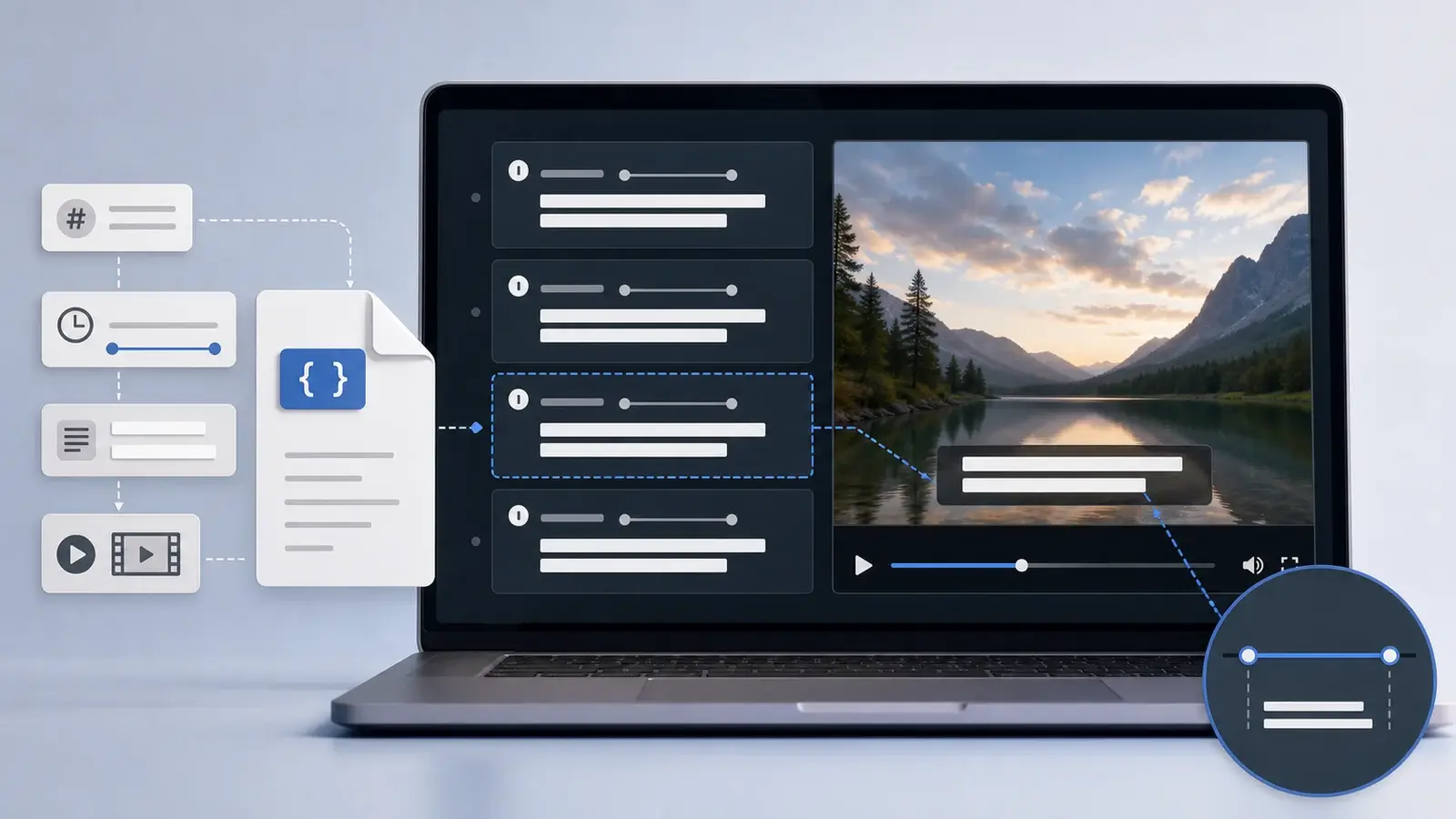
What is an SRT file?
Learn what an SRT file is, what its timestamps mean, and how this plain text subtitle format is commonly used.