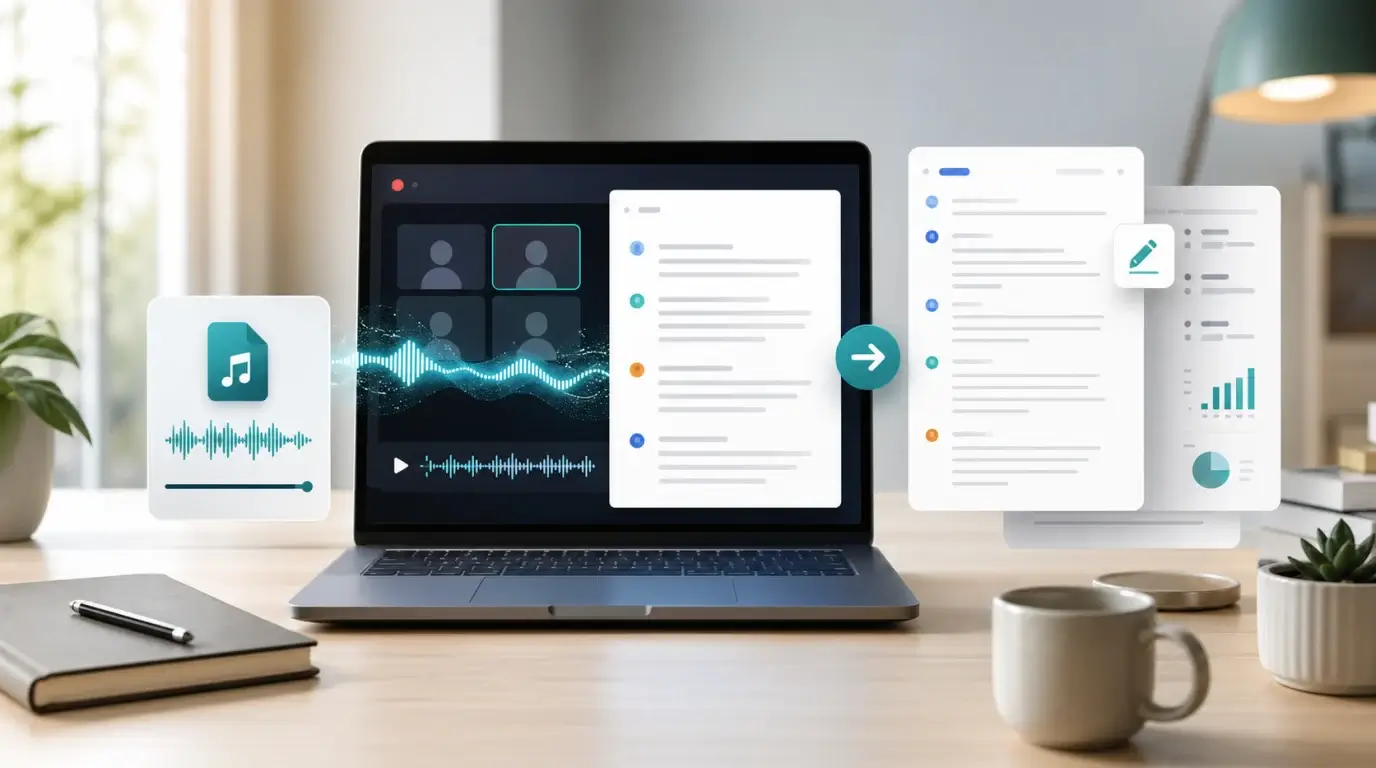
How can I take a Zoom audio file and get it transcribed to text?
Learn how to export Zoom audio, upload it to NeatScribe, and turn the recording into a clean, editable transcript.
The short answer
Yes. If you have a Zoom audio file, you can upload it to NeatScribe and convert the recording into text. The usual workflow is simple: find the Zoom recording, export or download the audio file, upload it, choose the spoken language, and review the transcript when processing finishes.
This is useful for meetings, interviews, webinars, lectures, research calls, customer conversations, and any situation where you need searchable notes instead of replaying the whole recording.
Step 1: Find your Zoom audio file
If the meeting was recorded locally, Zoom usually saves the recording on your computer after the meeting ends. Look for files such as:
audio_only.m4aaudio_only.mp3- a meeting recording folder that includes audio and video files
If the meeting was recorded to the cloud, open your Zoom account, go to the recording page, and download the audio file from the cloud recording options.
Step 2: Upload the audio to NeatScribe
Open NeatScribe and upload the Zoom audio file. You can use the audio-only file if you have it, or upload the meeting video file if that is what Zoom gave you.
Before starting transcription, choose the language that best matches the recording. If the meeting has a clear primary language, select that language. This helps the transcript come out cleaner.
Step 3: Wait for the transcript
After upload, NeatScribe processes the recording and turns the speech into text. Longer meetings naturally take more time than short clips.
When the transcript is ready, you can review the text, copy useful sections, and reuse the content for notes, summaries, documentation, follow-up emails, or subtitle workflows.
Tips for better Zoom transcripts
Good audio makes a noticeable difference. For better results:
- Use the original Zoom recording instead of a compressed copy.
- Prefer the audio-only file when Zoom provides one.
- Avoid uploading a recording with loud background music or heavy echo.
- Ask speakers to use microphones when possible.
- Trim long silent sections if the recording includes a lot of dead time.
What if I only have the video file?
That is fine. If you only have the Zoom video recording, upload the video file instead. NeatScribe can extract the speech and generate the transcript from the media file.
For most users, the important part is not whether the recording came from an audio file or a video file. The goal is to get the spoken content into an editable text format.
What to do after transcription
Once your Zoom recording is transcribed, you can turn it into something more useful:
- Meeting notes
- Action items
- Customer call summaries
- Research quotes
- Blog drafts
- Training material
- Subtitle files
A transcript is the base layer. From there, it is much easier to search, quote, summarize, and share the important parts of the meeting.
More Posts

What is research in film production?
Learn how research supports film production, from story and character work to locations, visuals, interviews, and accuracy.

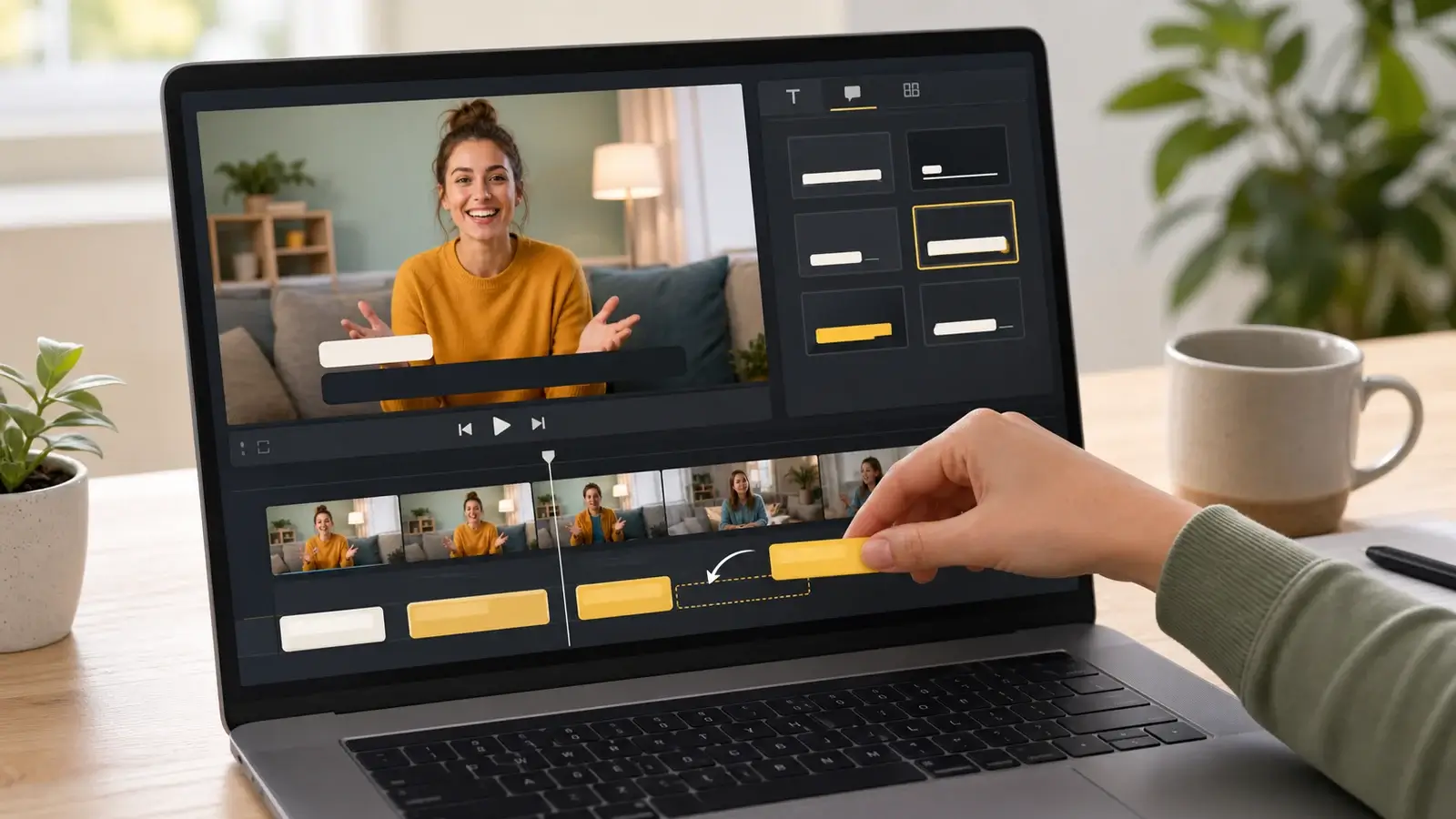
How to add captions in iMovie
Learn how to add caption-like text in iMovie, what the app can and cannot do, and how to keep captions readable.
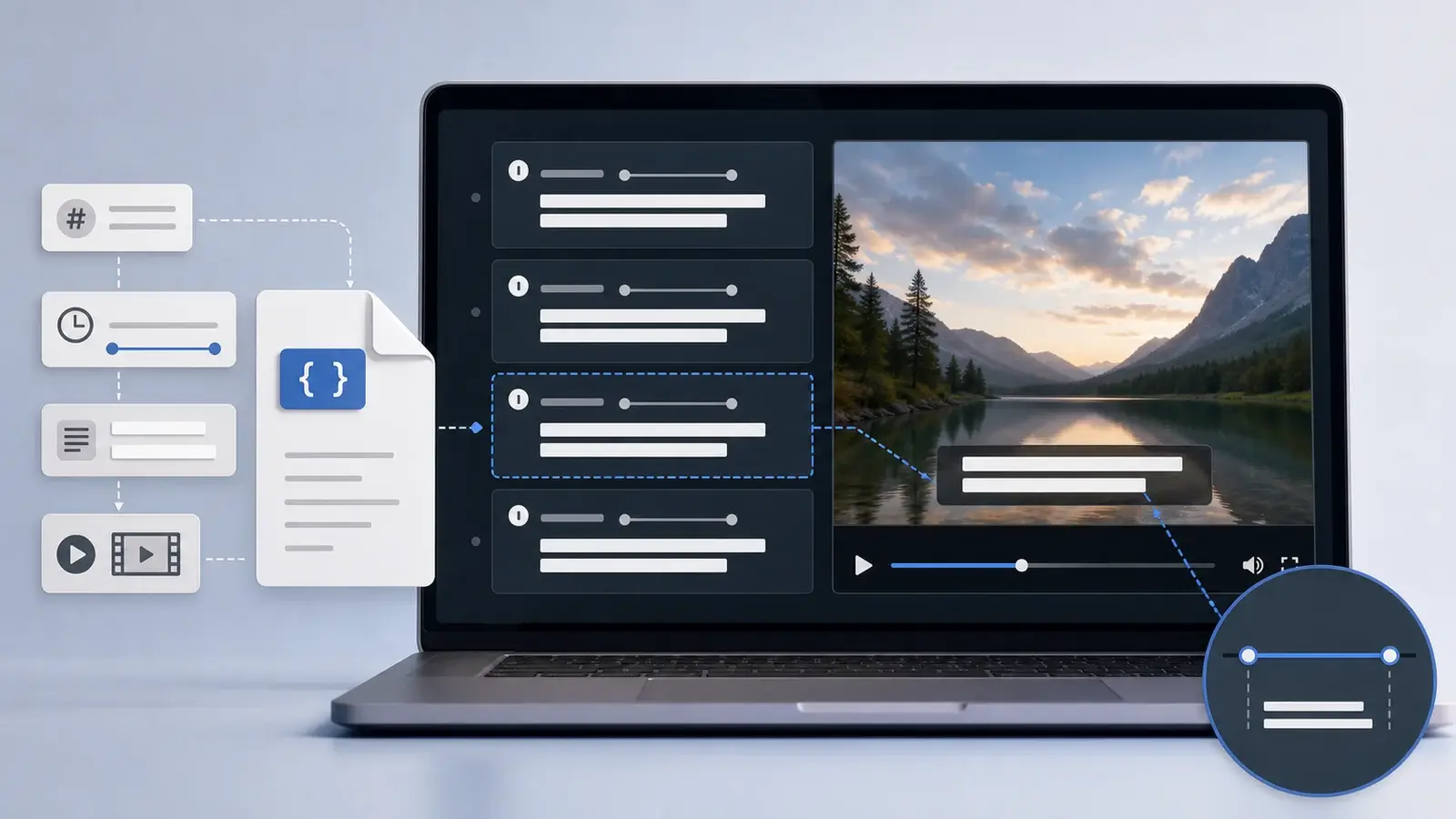
What is an SRT file?
Learn what an SRT file is, what its timestamps mean, and how this plain text subtitle format is commonly used.