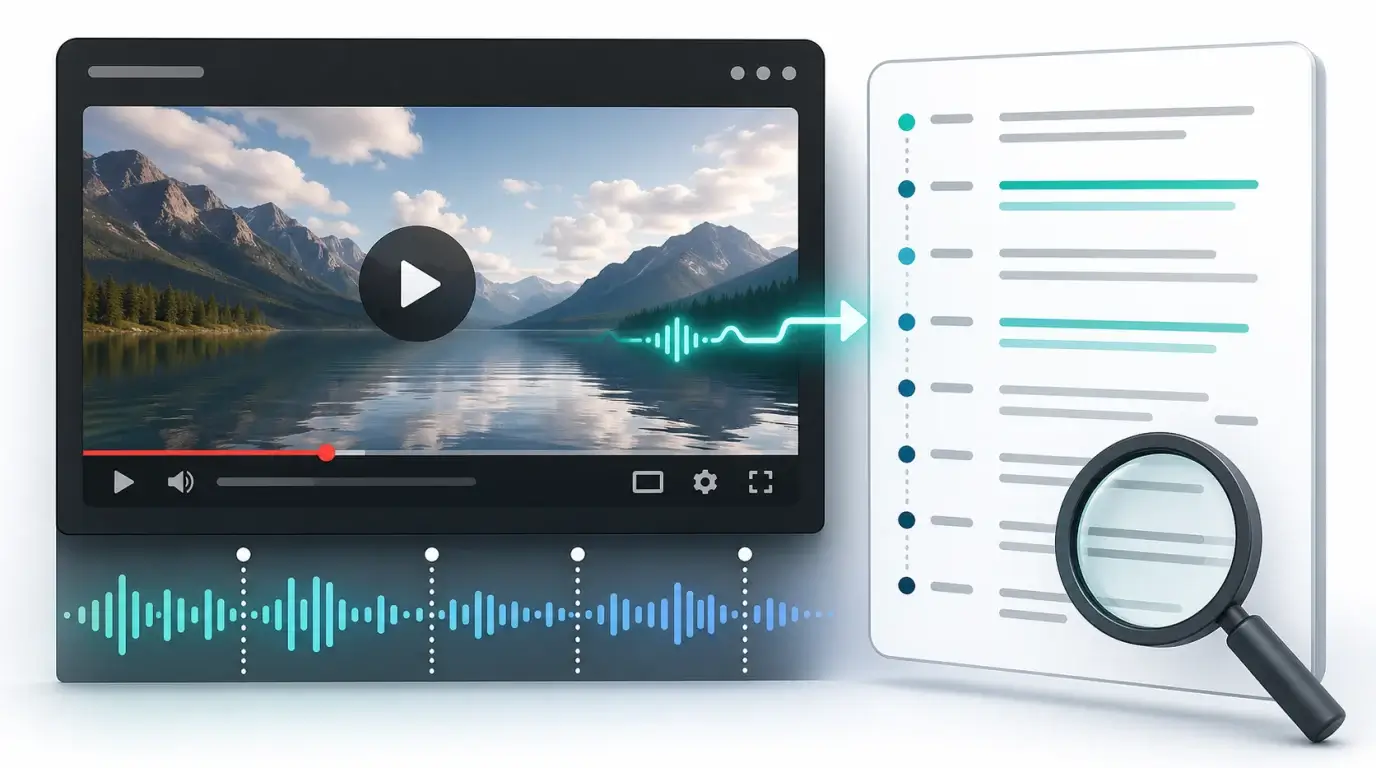
How can I get transcript from YouTube video?
Learn how to view YouTube's built-in transcript and how to generate a clean YouTube transcript with NeatScribe when you need editable text.
The short answer
If the YouTube video has captions, open the video and use YouTube’s “Show transcript” option. The transcript panel lets you read the caption text and jump to timestamps.
If the transcript option is not available, the captions are inaccurate, or you need a cleaner editable file, use NeatScribe to generate a transcript from the YouTube video. NeatScribe is useful when you want the transcript for notes, research, summaries, subtitles, blog content, or SEO work.
Use YouTube’s built-in transcript first
On desktop, open the video page, expand the description or more options area, and look for “Show transcript.” Once the panel opens, you can scan the text, search the page, and click lines to move the video to that point.
This is the fastest method because it uses captions already associated with the video. It is especially useful for lectures, tutorials, interviews, webinars, and long explainers.
However, this method depends on the video having captions. It also gives you the transcript in YouTube’s interface, which may not be the cleanest format if you need to edit, reuse, or archive the text.
Generate a YouTube transcript with NeatScribe
Use NeatScribe when YouTube does not show a transcript, when the built-in transcript is too messy, or when you want a separate transcript you can edit and export.
The workflow is simple:
- Open NeatScribe and choose the YouTube transcription workflow.
- Add the YouTube video source, or upload the video/audio file if you already have it.
- Choose the spoken language if the tool asks for it.
- Start transcription and wait for the transcript to finish.
- Review the result, then copy or export the text for your notes, article, subtitles, or documentation.
Only process videos you own, have permission to use, or are otherwise allowed to transcribe. A public YouTube video is still someone else’s content unless you have the rights to reuse it.
A quick quality checklist
Whether you use YouTube’s built-in transcript or generate a new one with NeatScribe, review the important parts before publishing or sharing. Check names, numbers, URLs, product names, timestamps, and quotes. These are the places where automatic transcripts most often need correction.
For publication, do not paste a raw transcript without editing. Break it into paragraphs, remove false starts when appropriate, and keep the meaning faithful to the original speech.
Best use cases
YouTube transcripts are excellent for tutorials, lectures, product demos, interviews, sermons, webinars, and long commentary videos. They let you skim the content, find a quote, or jump directly to a useful timestamp.
They are less reliable for music videos, comedy clips, heavy background audio, or videos with many speakers talking at the same time.
Save a cleaner version
If you plan to reuse the transcript, save a clean working copy. Remove repeated timestamps if you do not need them, add paragraph breaks, and check any quote against the original video.
For your own videos, generating the transcript with NeatScribe gives you a reusable source file for publishing, SEO, accessibility, show notes, lesson material, and social posts. It also keeps your YouTube transcripts in the same workflow as other audio, video, Instagram, and TikTok transcription work.
More Posts

What is research in film production?
Learn how research supports film production, from story and character work to locations, visuals, interviews, and accuracy.

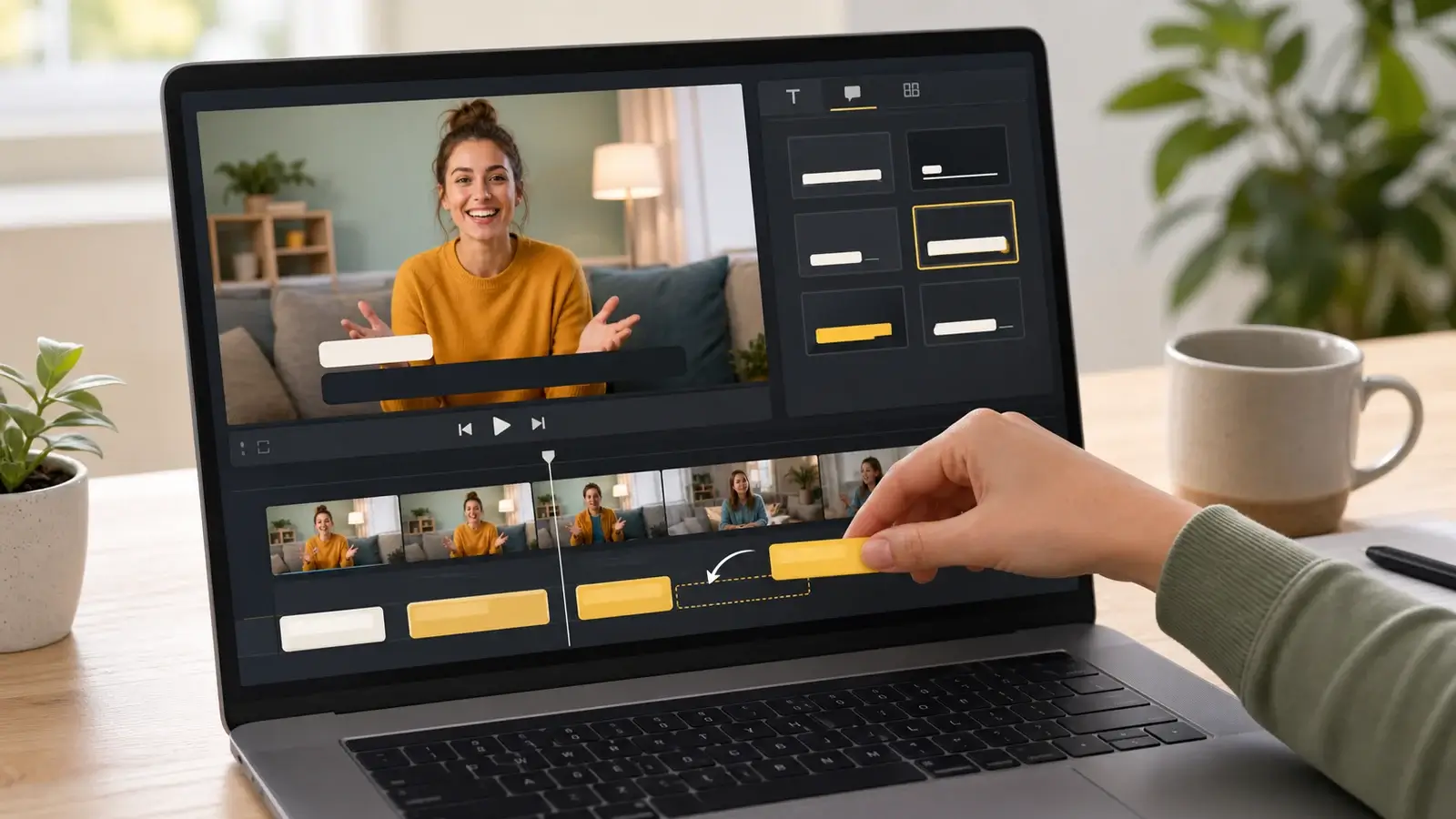
How to add captions in iMovie
Learn how to add caption-like text in iMovie, what the app can and cannot do, and how to keep captions readable.
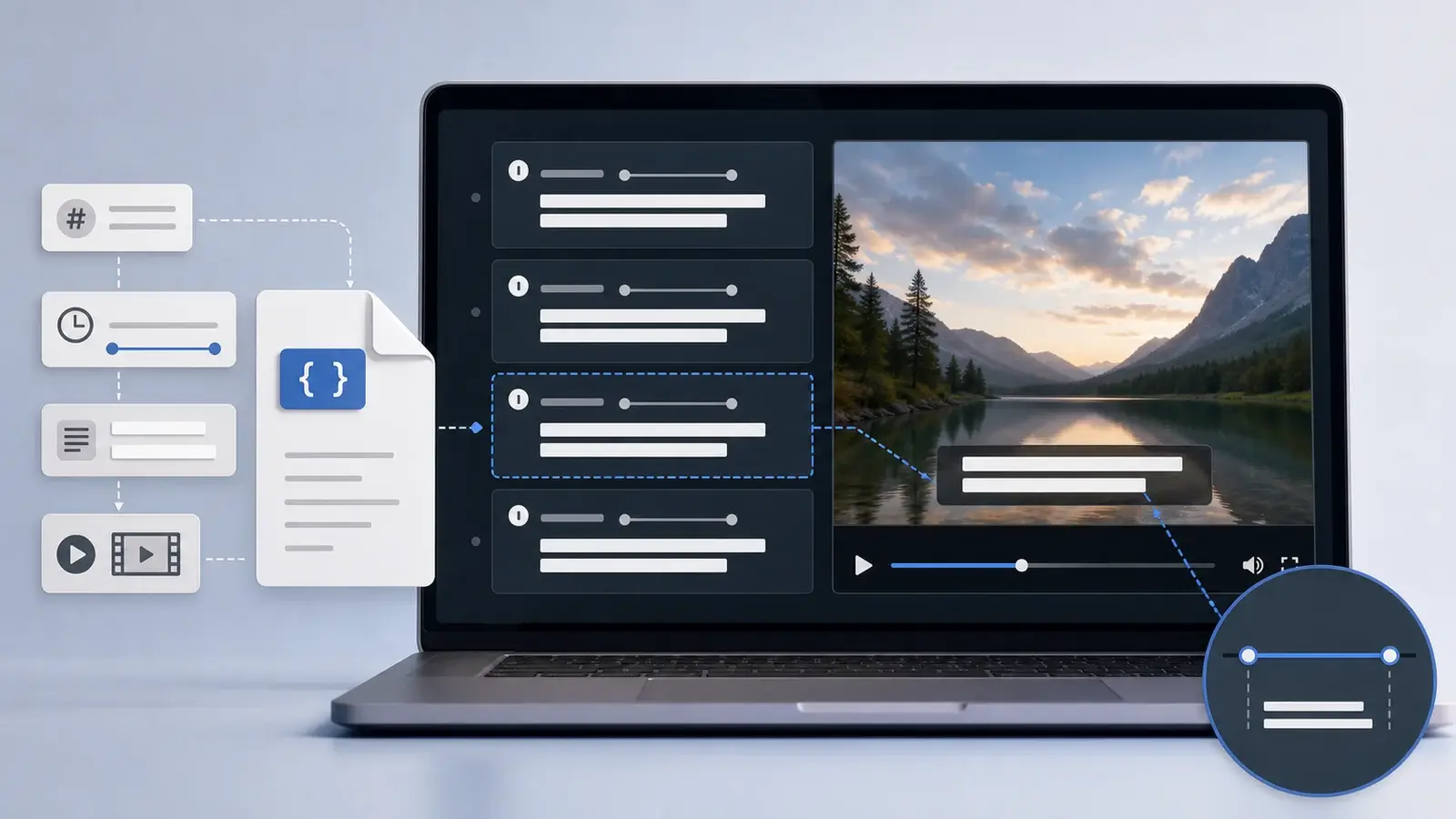
What is an SRT file?
Learn what an SRT file is, what its timestamps mean, and how this plain text subtitle format is commonly used.