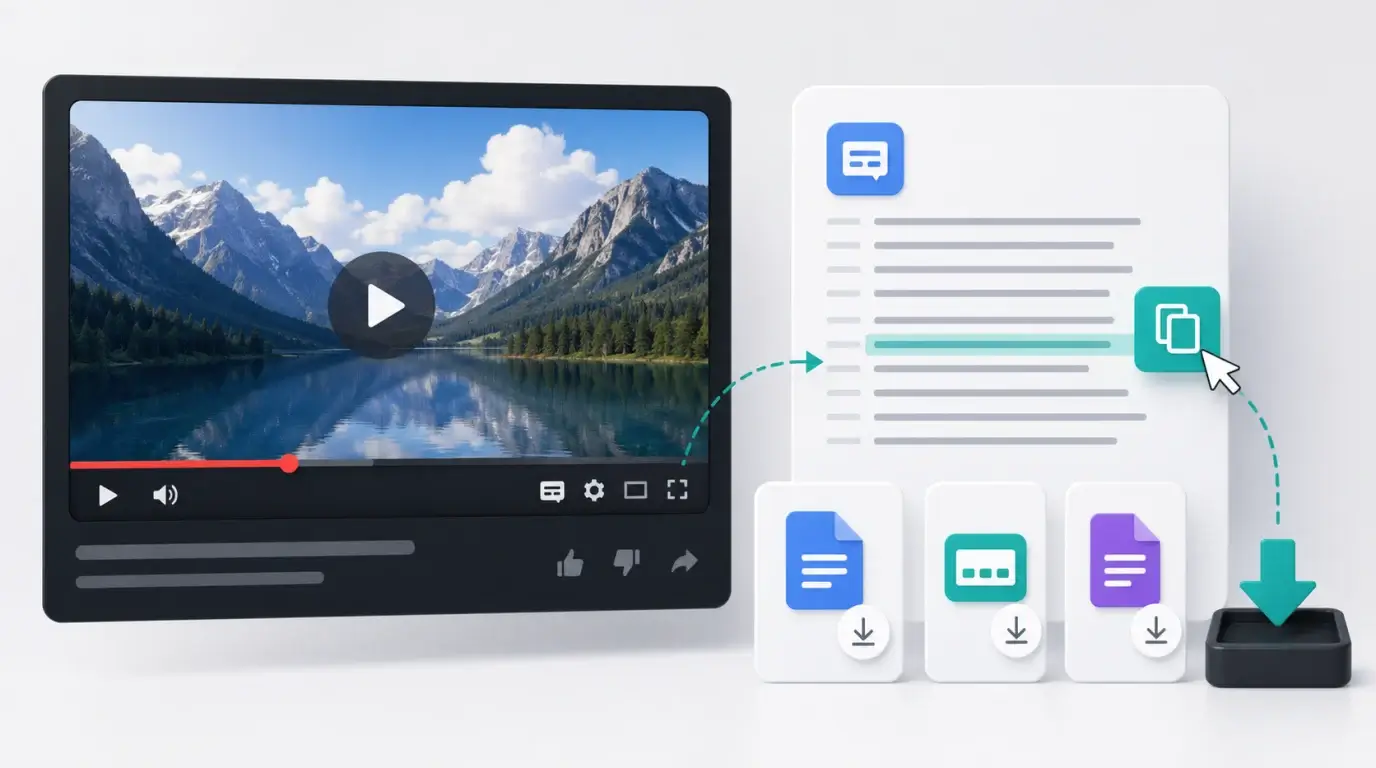
How do you download the transcript on YouTube?
Learn the difference between viewing, copying, and downloading YouTube transcripts and captions.
The short answer
YouTube lets viewers view transcripts for videos that have captions, but it does not always provide a simple “download transcript” button for every viewer and every video. In many cases, viewers copy the transcript text manually from the transcript panel.
Creators have more options in YouTube Studio because they can manage and download caption files for their own videos.
For viewers
Open the video, choose “Show transcript” if it is available, then select and copy the transcript text you need. Some interfaces let you hide timestamps; if so, turn timestamps off before copying if you only want the words.
If the transcript panel is missing, the video may not have captions or the transcript may not be available in that interface.
For creators
If it is your video, go to YouTube Studio and manage subtitles or captions for that video. Creator tools are better for downloading caption files because they are connected to the video’s subtitle tracks.
If YouTube auto-generated captions, review them before relying on them. Auto captions are helpful, but they can mishear names, technical terms, and overlapping speech.
When you need a clean transcript file
If copying from YouTube gives you messy text, or if you need a transcript for a video you own, use NeatScribe instead of manually cleaning the YouTube panel. Add the YouTube video source, or upload the original video/audio file, then generate and export a clean transcript for your notes, CMS, or documentation system.
Avoid downloading or redistributing transcripts from videos you do not have permission to reuse.
Copying is not the same as downloading
Many people say “download” when they really mean “get the text out of YouTube.” For viewers, copying from the transcript panel is often the available method. For creators, caption file management in YouTube Studio is the better path.
If you need a reusable file, paste the copied text into a document and save it as plain text, Markdown, or a word-processing file.
Watch for timestamp cleanup
Transcripts copied from YouTube may include timestamps, line breaks, and caption fragments. That is useful when you need to locate moments, but messy when you want a readable article.
Before sharing, decide whether timestamps are useful. If not, remove them and edit the transcript into paragraphs that make sense without the video player.
When you generate the transcript with NeatScribe, keep one clean version for reading and one timestamped version if you need to jump back to exact video moments.
More Posts

What is research in film production?
Learn how research supports film production, from story and character work to locations, visuals, interviews, and accuracy.

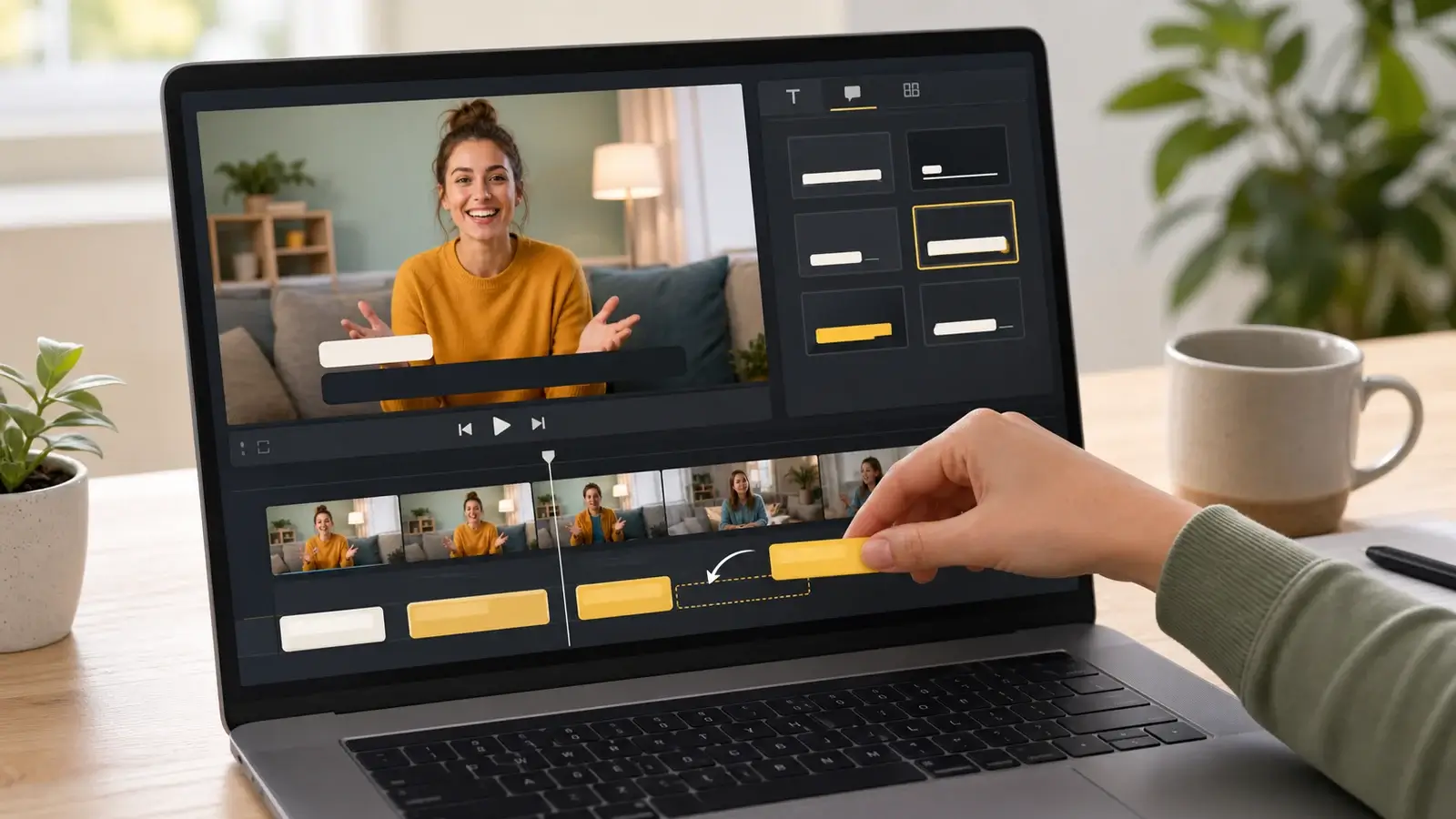
How to add captions in iMovie
Learn how to add caption-like text in iMovie, what the app can and cannot do, and how to keep captions readable.
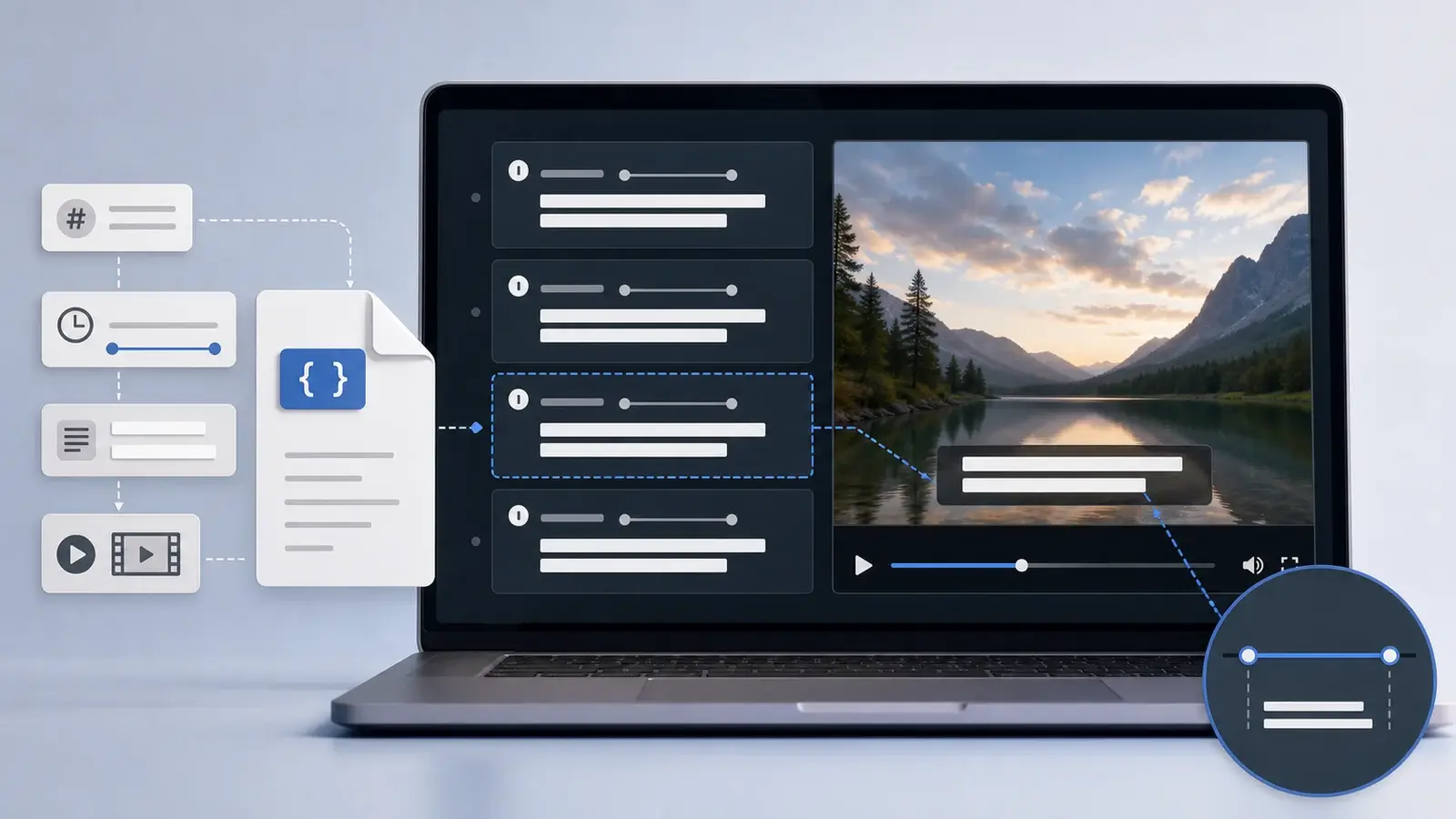
What is an SRT file?
Learn what an SRT file is, what its timestamps mean, and how this plain text subtitle format is commonly used.