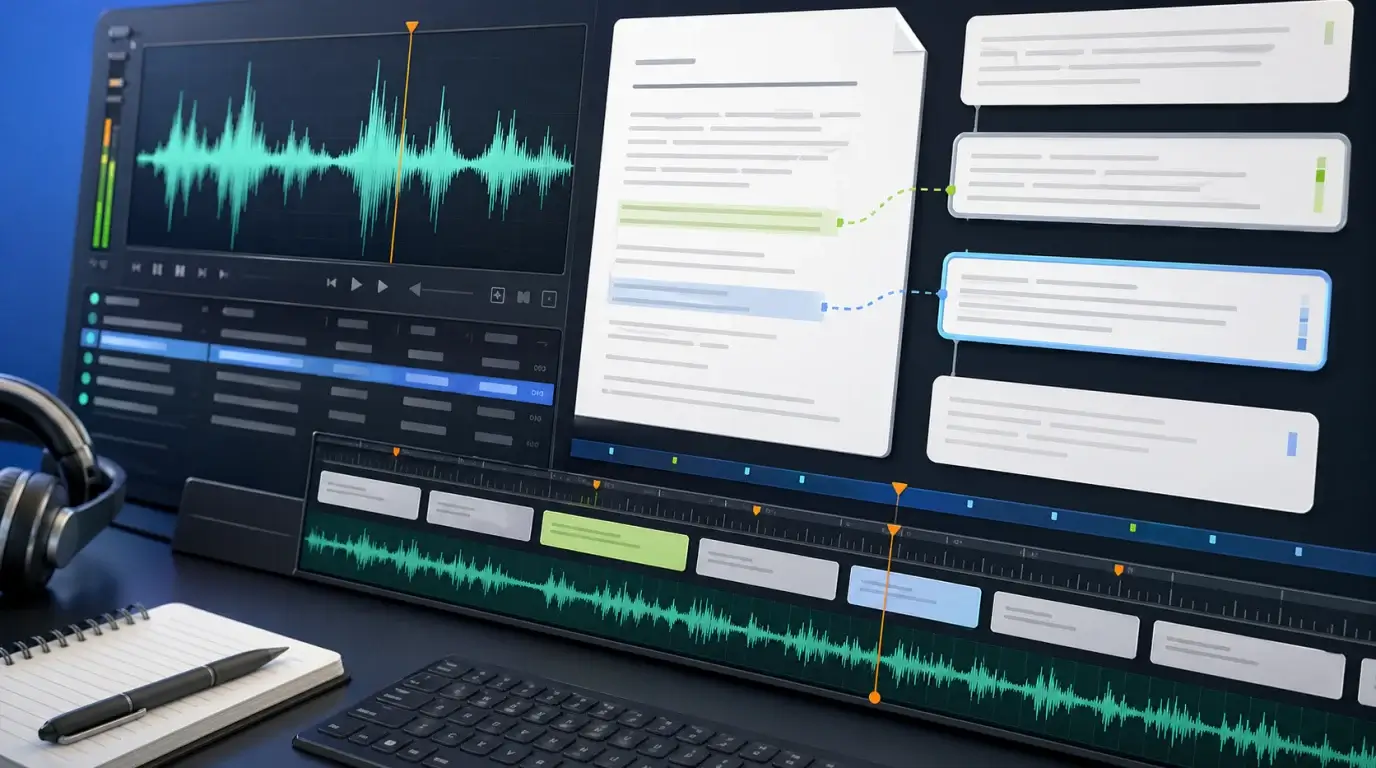
How to sync audio file and text file in Subtitle Edit
Learn the practical ways to align a plain text transcript with audio in Subtitle Edit using waveform, point sync, and speech-to-text.
The short answer
You can sync an audio file and a text file in Subtitle Edit, but a plain text file has no timing information. Subtitle Edit needs timecodes to create subtitles, so you either add timings manually, use waveform-based tools, use point sync with reference lines, or generate timed subtitles with speech-to-text and then correct them.
If your text file is only a transcript, expect some manual cleanup. If it is already an SRT or VTT file with timestamps, syncing is much easier.
Start with the right files
Open the media file in Subtitle Edit so you can see the audio waveform. If needed, configure FFmpeg or VLC so Subtitle Edit can extract waveform data. The waveform helps you see where speech starts and ends.
Then import or paste your text. For a plain text transcript, split it into subtitle-sized lines before timing. Shorter lines are easier to read and easier to align.
Use manual timing for clean control
Play the audio and set the start and end time for each subtitle line as the words are spoken. Use the waveform to place captions around speech instead of silence. This takes time, but it gives the best control when the transcript is important.
For small offsets, use synchronization tools to shift all subtitles earlier or later. For gradual drift, use point sync or visual sync by matching an early line and a later line to the correct audio positions.
Use speech-to-text when the text has no timings
Subtitle Edit includes speech-to-text options such as Whisper or Vosk in supported setups. You can generate a timed subtitle draft from the audio, then compare it with your existing text file.
Another practical workflow is to create the transcript in NeatScribe first, clean the wording, export or prepare subtitle lines, and then fine-tune timing in Subtitle Edit. This works whether your speech source starts as an audio file, a video file, or a supported platform source such as YouTube, Instagram, or TikTok. It is often faster than starting from an untimed text file and placing every line from scratch.
Plain transcript versus subtitles
A transcript is written text. Subtitles are timed text. Subtitle Edit can help you turn one into the other, but the timing step is the real work. A plain text file does not know when each sentence begins or ends.
If your transcript is long, split it into subtitle-length lines before timing. Long paragraphs are hard to read on screen and hard to align precisely.
Review the final timing
After syncing, play the whole file once from start to finish. Watch for subtitles that appear too early, disappear before the speaker finishes, or stay on screen during long silence.
For comfortable subtitles, leave enough reading time, keep lines short, and avoid stacking too many words in a single caption. If the transcript will be published, small timing fixes make a big difference to the viewer experience.
More Posts

What is the 60/30/10 rule in filmmaking?
Understand how the 60/30/10 rule can guide color balance, visual hierarchy, and emphasis in a film scene.


What is research in film production?
Learn how research supports film production, from story and character work to locations, visuals, interviews, and accuracy.

How to add captions in iMovie
Learn how to add caption-like text in iMovie, what the app can and cannot do, and how to keep captions readable.