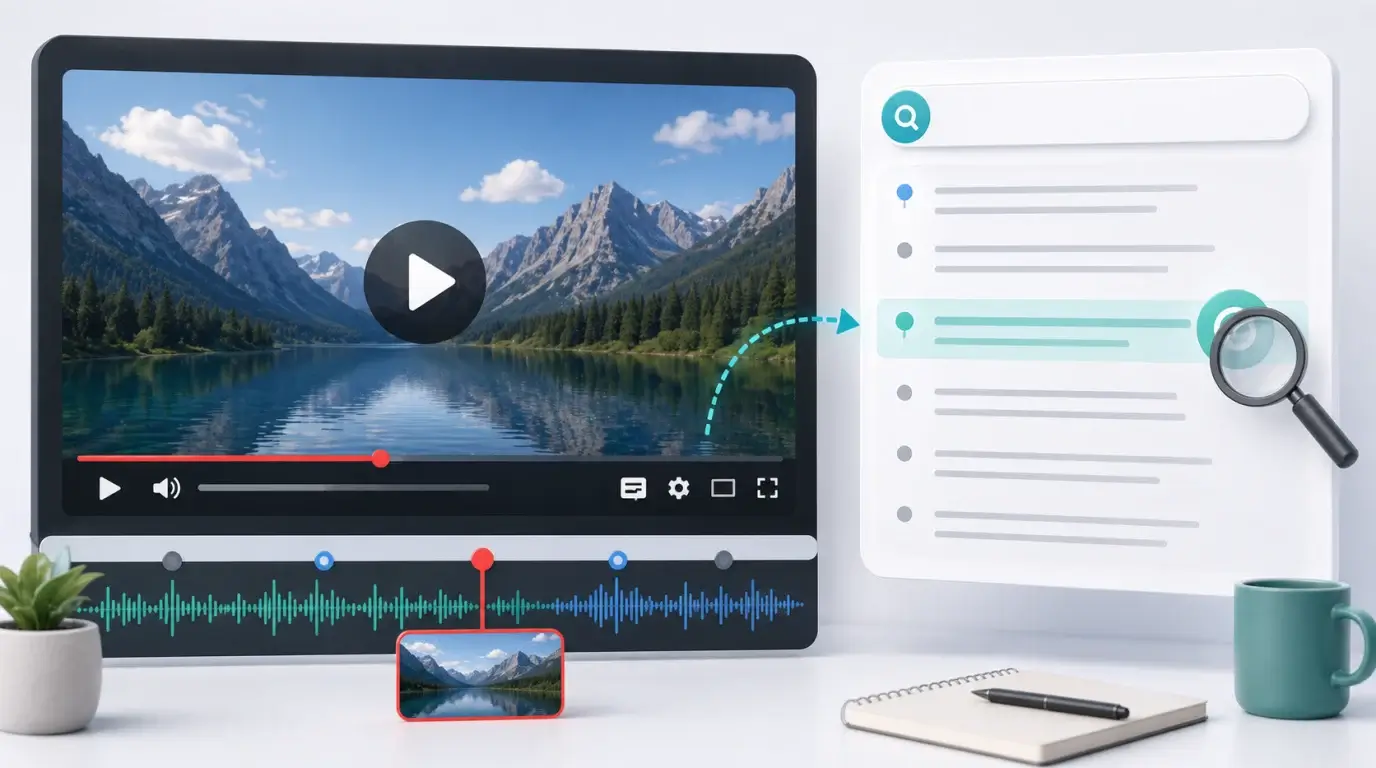
How to find a section in YouTube video with just a text
Learn how to find an exact moment in a YouTube video by searching its transcript text, opening the matching timestamp, and reviewing the surrounding context.
The short answer
If the YouTube video has a transcript, open “Show transcript” and search for the text you remember. When you find the matching line, click it to jump to that part of the video.
This works best when you remember a distinctive phrase, name, product, or sentence from the video.
Use the YouTube transcript panel
Open the video on desktop, find the transcript option, and use your browser’s search command to look for the phrase. Some YouTube transcript panels also include their own search behavior depending on the interface.
When the text appears, click the transcript line. YouTube will move the player to that timestamp, letting you verify the quote in context.
If the phrase does not appear
Try shorter keywords. Automatic captions may use different punctuation, omit filler words, or mishear names. Search for the most unusual word rather than the whole sentence.
If the transcript is auto-generated, the exact wording may not match what you remember. Search around related terms, then listen to nearby sections.
If the video has no transcript
If you own the video or have permission, create a transcript with NeatScribe. Use the YouTube transcription workflow, or upload the original video/audio file, then search the generated transcript for the phrase you remember.
Once you have the text, you can search it instantly and jump back to approximate timestamps if your transcript includes timing.
For research workflows, this is much faster than scrubbing through a long video manually.
Search smarter
Search for the rarest word you remember. A phrase like “the budget approval deadline” is easier to find than “we should do this.” If the transcript was auto-generated, try alternate spellings or related words.
If you remember only the topic, search for several terms one by one. The right section may use a different phrase than the one in your memory.
Build a personal video index
For research, training, or long tutorials, create transcripts for videos you use often and keep them in a searchable notes system. Then you can search across many videos, not just one.
When you find an important moment, save the timestamp with a short note. This makes future review much faster.
NeatScribe fits this workflow when you are building a reusable archive, because it can generate transcripts for YouTube sources alongside other audio, video, Instagram, and TikTok transcription work.
More Posts

What is research in film production?
Learn how research supports film production, from story and character work to locations, visuals, interviews, and accuracy.

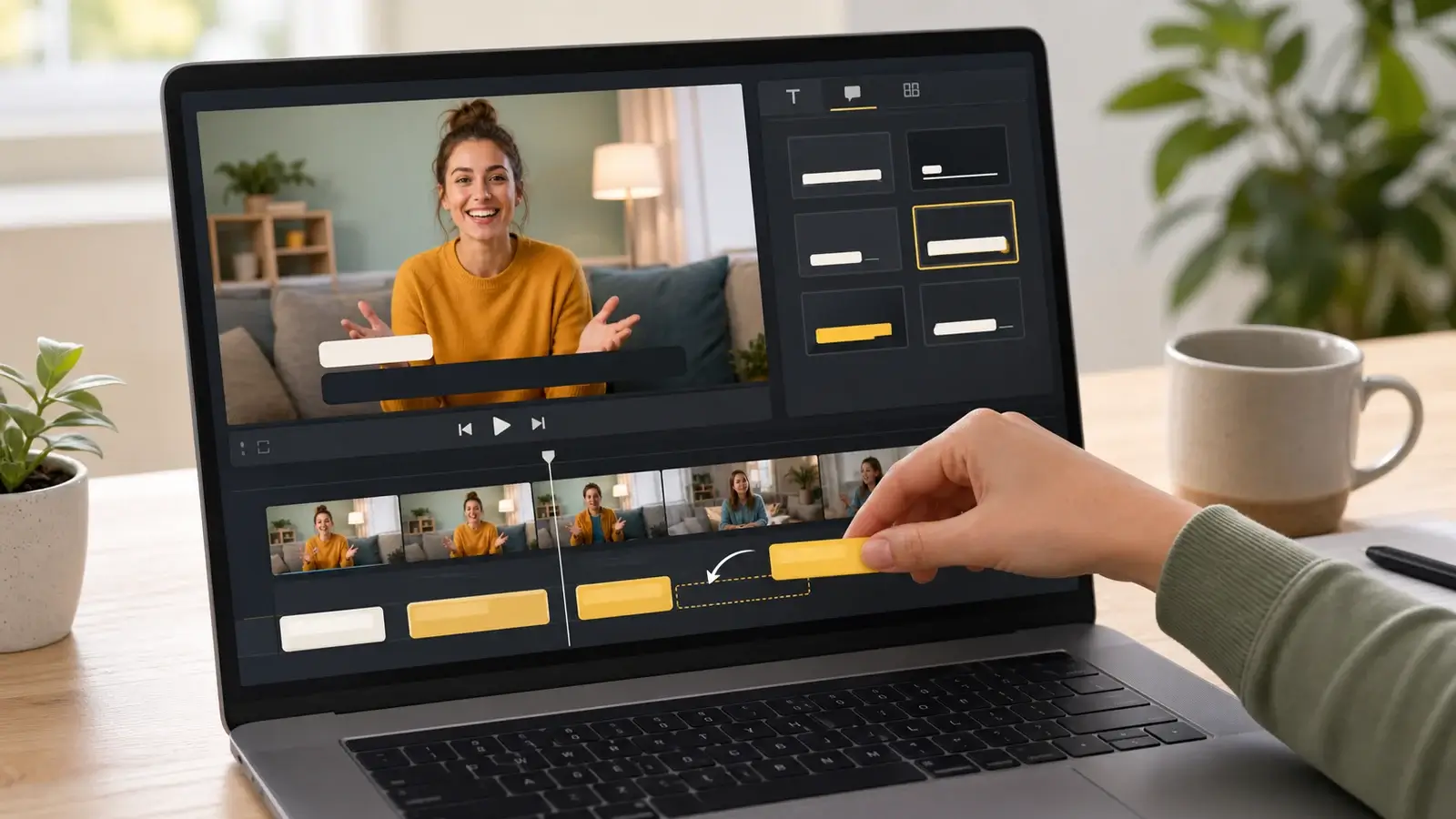
How to add captions in iMovie
Learn how to add caption-like text in iMovie, what the app can and cannot do, and how to keep captions readable.
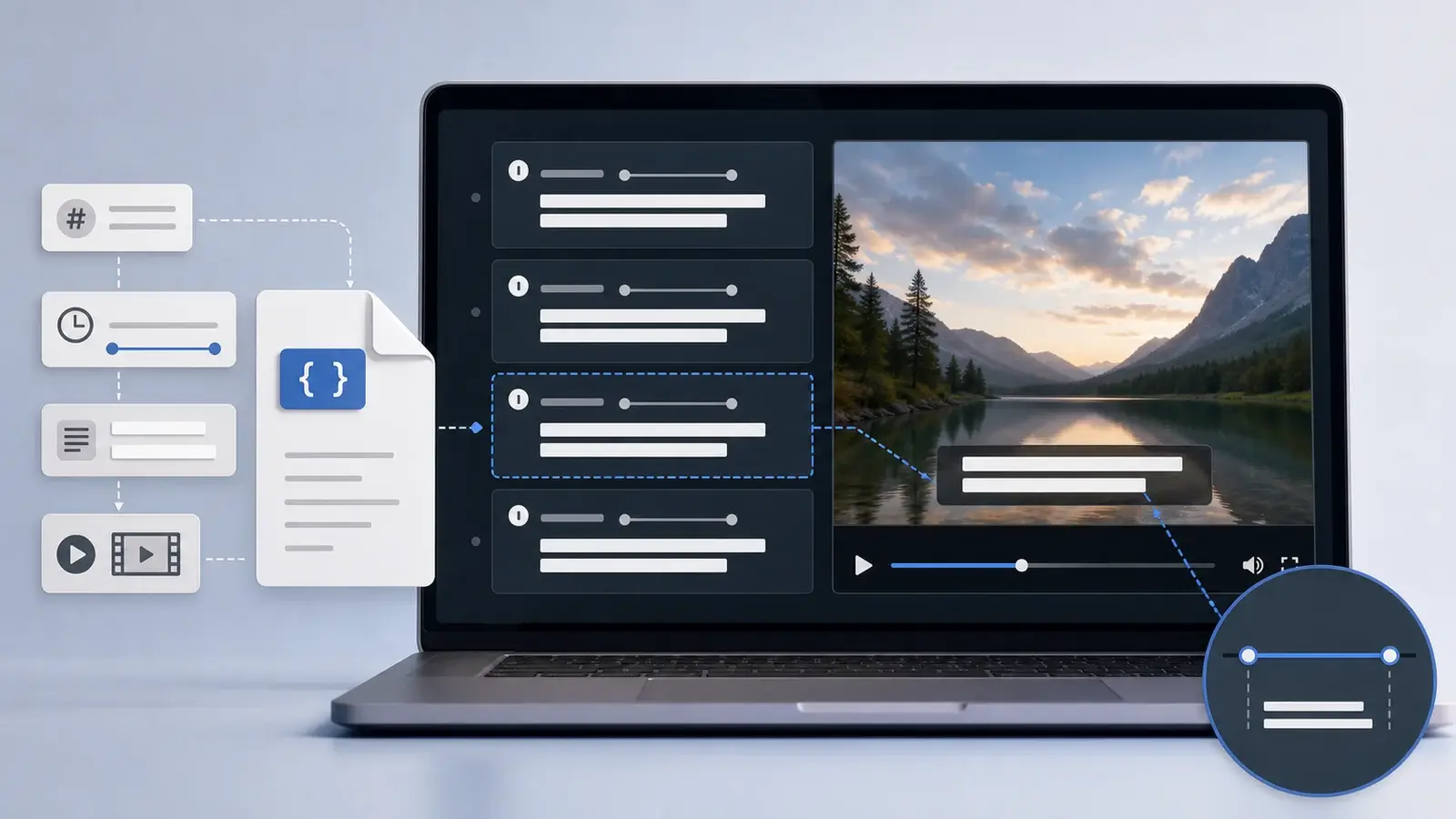
What is an SRT file?
Learn what an SRT file is, what its timestamps mean, and how this plain text subtitle format is commonly used.