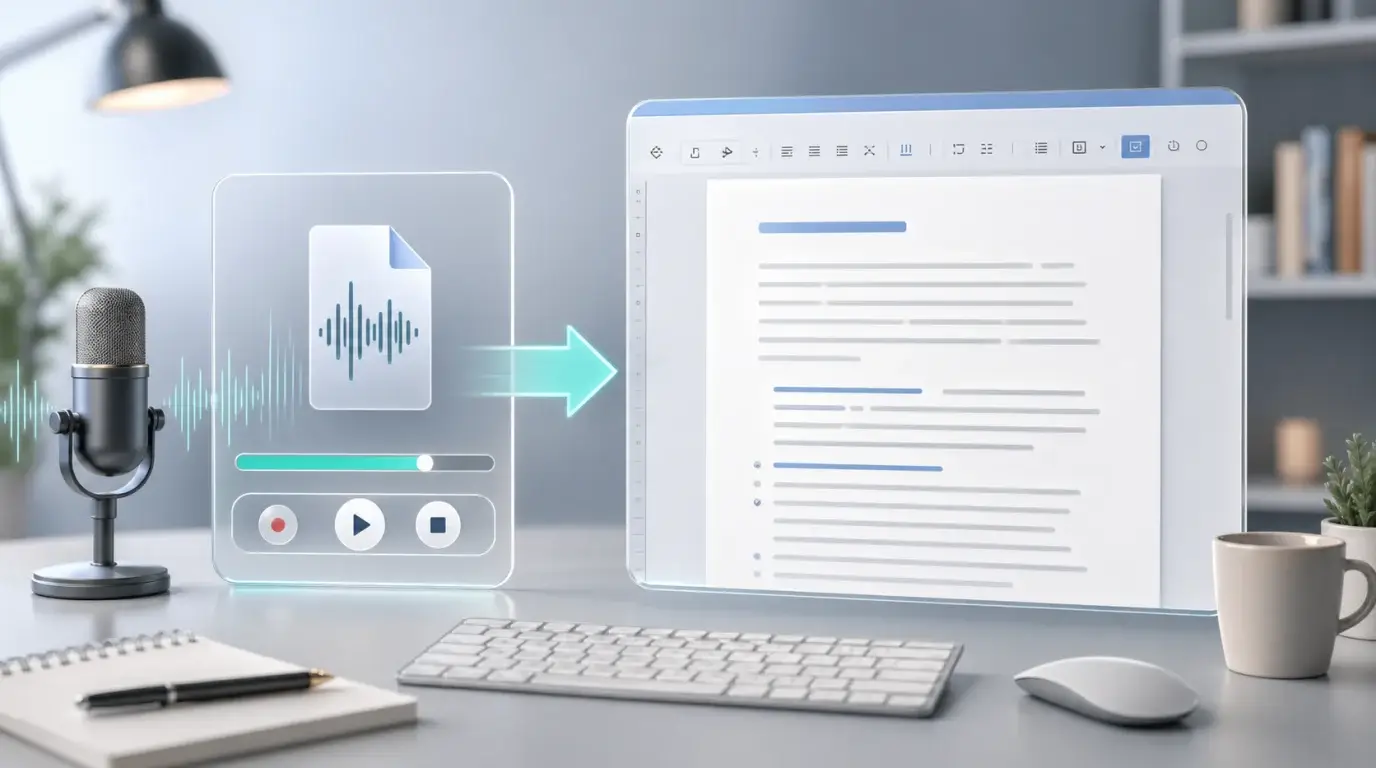
How to use Word to convert audio to text
Learn how Microsoft Word transcription works, how to upload audio, and when a dedicated transcription tool may be easier.
The short answer
Microsoft Word includes a Transcribe feature for Microsoft 365 users in supported versions. It can record speech or upload an existing audio file, then create a transcript that you can edit and insert into a Word document.
The exact availability can depend on your Microsoft account, subscription, region, browser, and whether connected experiences are enabled by your organization.
How to transcribe audio in Word
Open Word and look for the Dictate or Transcribe option on the Home tab. Choose Transcribe, then upload your audio file. Word processes the file and shows a transcript pane with editable text and timestamps.
After the transcript appears, you can edit mistakes, play back sections, insert selected parts into the document, or add the full transcript to the page.
What Word is good at
Word is convenient when your final output is already a Word document. It is useful for interviews, lectures, voice notes, and meeting recordings that you want to quote or summarize in a report.
It is less ideal if you need a dedicated transcription workspace, frequent media uploads, subtitle exports, or a workflow built around many audio and video files.
Common problems
If you cannot find Transcribe, check that you are signed into the correct Microsoft 365 account and that your organization allows connected experiences. If upload fails, try a common audio format such as MP3, WAV, M4A, or MP4 and keep the file size reasonable.
If you simply need quick audio to text without setting up Word, upload the recording to NeatScribe, review the transcript, and then paste the cleaned text into Word. This is also more flexible when the source is a video file or a platform clip from a source such as YouTube, Instagram, or TikTok.
Word versus a dedicated transcription tool
Word is convenient when you are already writing a report and want the transcript inside the same document. It works well for simple dictation and occasional uploaded recordings.
A dedicated transcription tool is better when you handle many files, need a media-focused review flow, want subtitle or transcript exports, or want a cleaner process for audio and video files. If your final destination is not a Word document, starting in a transcription tool can be faster.
Accuracy tips
Use a clean recording and avoid playing audio out loud into your laptop microphone. Uploading the original file usually works better than re-recording the sound through speakers.
After Word creates the transcript, listen to important sections while editing. Proper nouns, product names, numbers, and abbreviations are the most common places where transcript mistakes can change the meaning.
More Posts

What is research in film production?
Learn how research supports film production, from story and character work to locations, visuals, interviews, and accuracy.

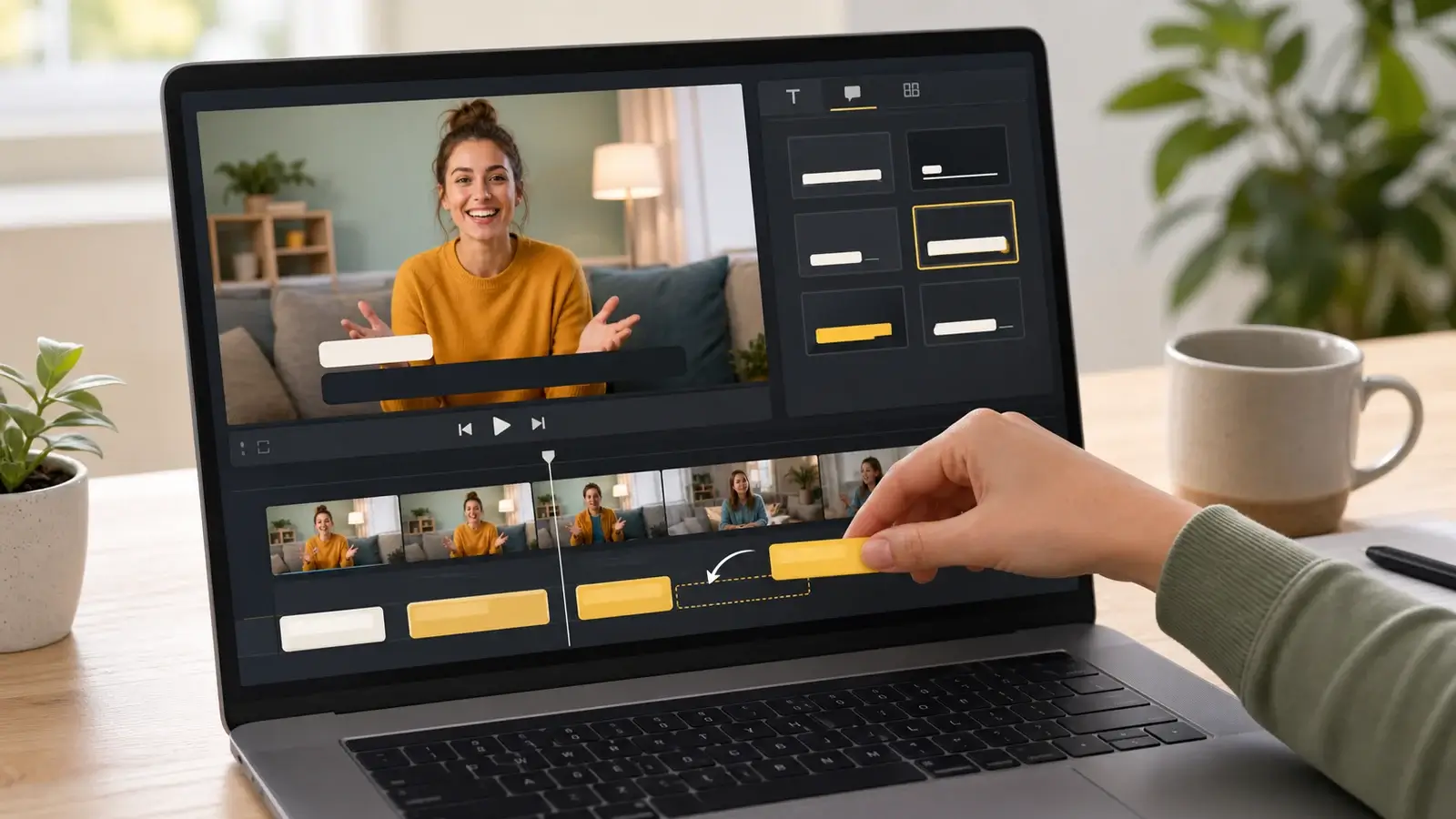
How to add captions in iMovie
Learn how to add caption-like text in iMovie, what the app can and cannot do, and how to keep captions readable.
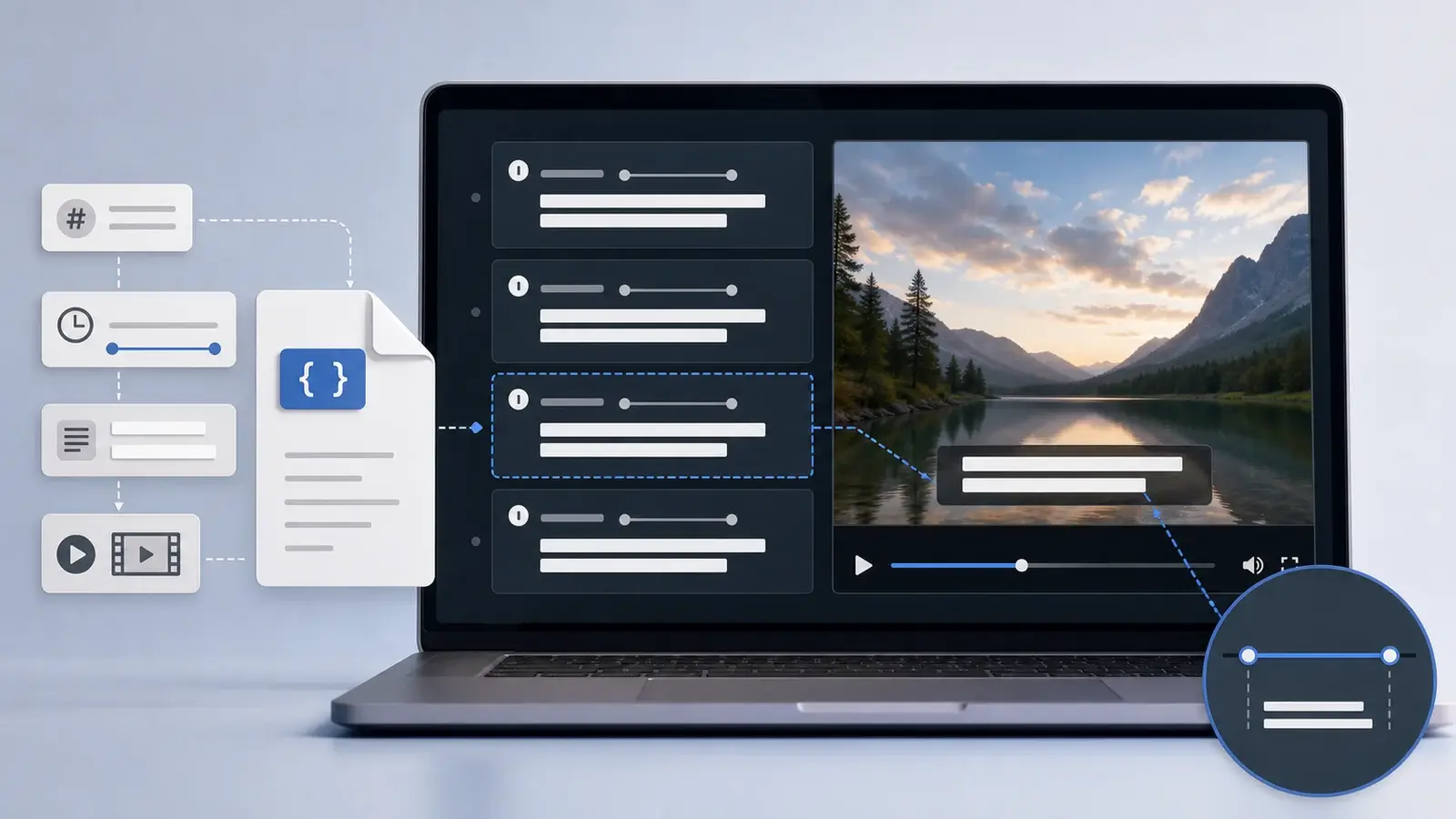
What is an SRT file?
Learn what an SRT file is, what its timestamps mean, and how this plain text subtitle format is commonly used.