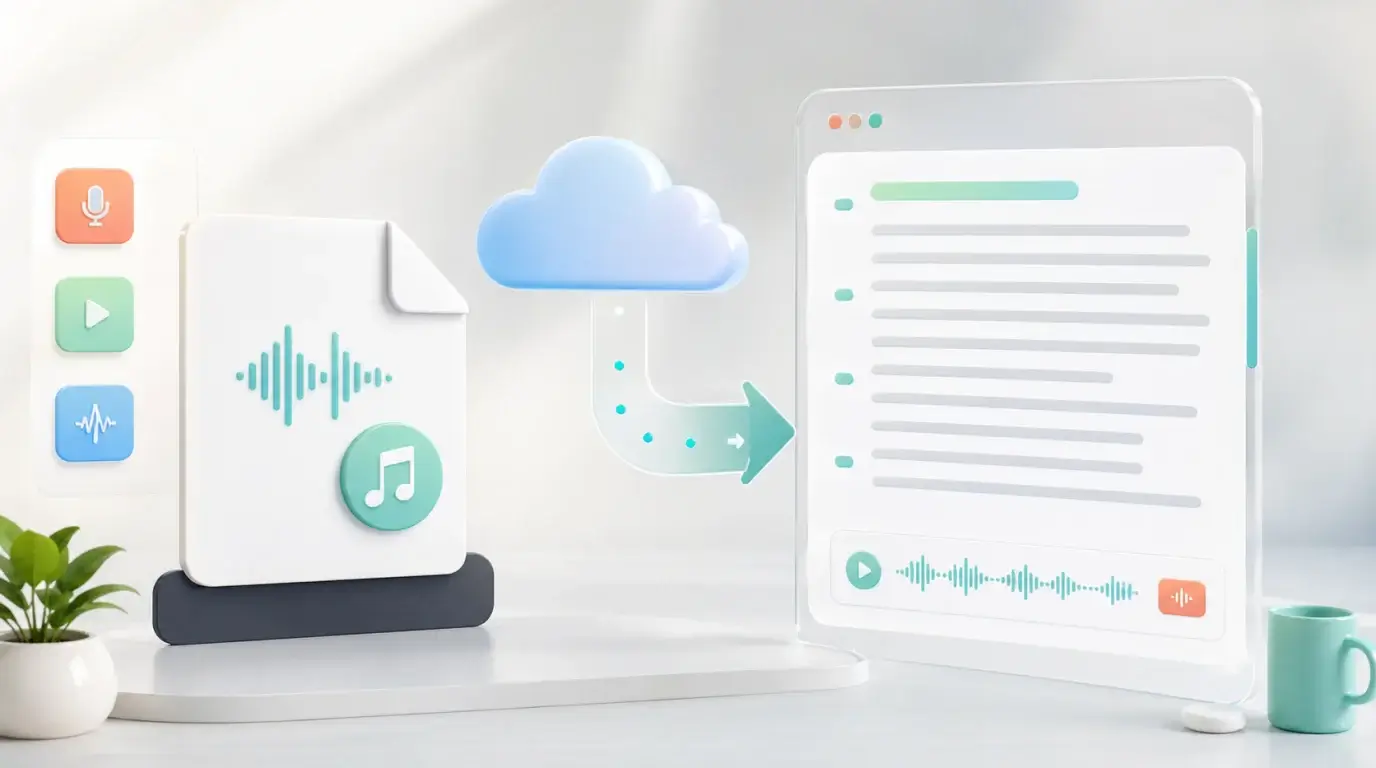
How can I upload an audio file and have it transcribed to text?
Learn how to upload an audio file online, generate an editable transcript with timestamps, review the text, and export it for notes, editing, or sharing.
The short answer
You can upload an audio file to an online transcription tool, choose the spoken language, start transcription, and then review the result as editable text. The process works for common recordings such as MP3, M4A, WAV, meeting audio, interviews, lectures, voice memos, podcasts, and webinars.
For a straightforward workflow, use NeatScribe’s audio to text page, upload the original file, and wait for the transcript to finish. NeatScribe also supports video transcription and platform-based transcription workflows, including sources such as YouTube, Instagram, and TikTok when you have the right to process the content.
Step 1: Prepare the audio file
Use the cleanest version of the recording you have. Original audio is usually better than a compressed copy sent through chat apps. If the recording is very long, you can still upload it, but shorter files are easier to review and organize.
Before uploading, rename the file clearly. A name like “customer-interview-april-27.m4a” is easier to recognize later than “audio_only_final_v3.m4a”.
Step 2: Upload and choose the language
Open the transcription tool and upload the file from your computer or phone. If the tool asks for a language, choose the main language spoken in the recording. This matters because many speech recognition errors come from using the wrong language setting.
If the recording has multiple languages, pick the dominant one first, then plan to review the mixed-language parts manually.
Step 3: Review and export the transcript
When processing finishes, read through the transcript while listening to important sections. Fix names, product terms, speaker labels, numbers, and any words that matter for accuracy.
After review, you can copy the transcript into notes, export it for documentation, turn it into a summary, or use it as the base for subtitles. The transcript is a starting point; the value comes from making the spoken content searchable and reusable.
What file should you upload?
Upload the original file whenever possible. MP3 and M4A files are common, but WAV can be useful when you have a high-quality recording. Video files are also workable if the speech is inside the video and the tool supports video upload.
If the recording came from a platform instead of a local file, use the platform-specific workflow when available. For example, a creator may need to transcribe a YouTube tutorial, an Instagram Reel, or a TikTok clip and then reuse the text for captions, notes, or republishing.
That is where NeatScribe is useful as a single transcription workspace: local audio files, local video files, and supported platform sources can all end in the same kind of editable transcript.
Do not convert the same file repeatedly unless you have to. Every conversion can reduce audio quality, and lower quality usually means more transcript cleanup.
What makes the transcript better?
Good transcription starts before upload. Keep speakers close to the microphone, reduce background noise, avoid overlapping speech, and record in a quiet room. If you are recording a meeting, ask people to speak one at a time.
After upload, the most important review items are names, technical terms, numbers, URLs, and action items. These are the words that matter most when the transcript is used for work.
More Posts

What is research in film production?
Learn how research supports film production, from story and character work to locations, visuals, interviews, and accuracy.

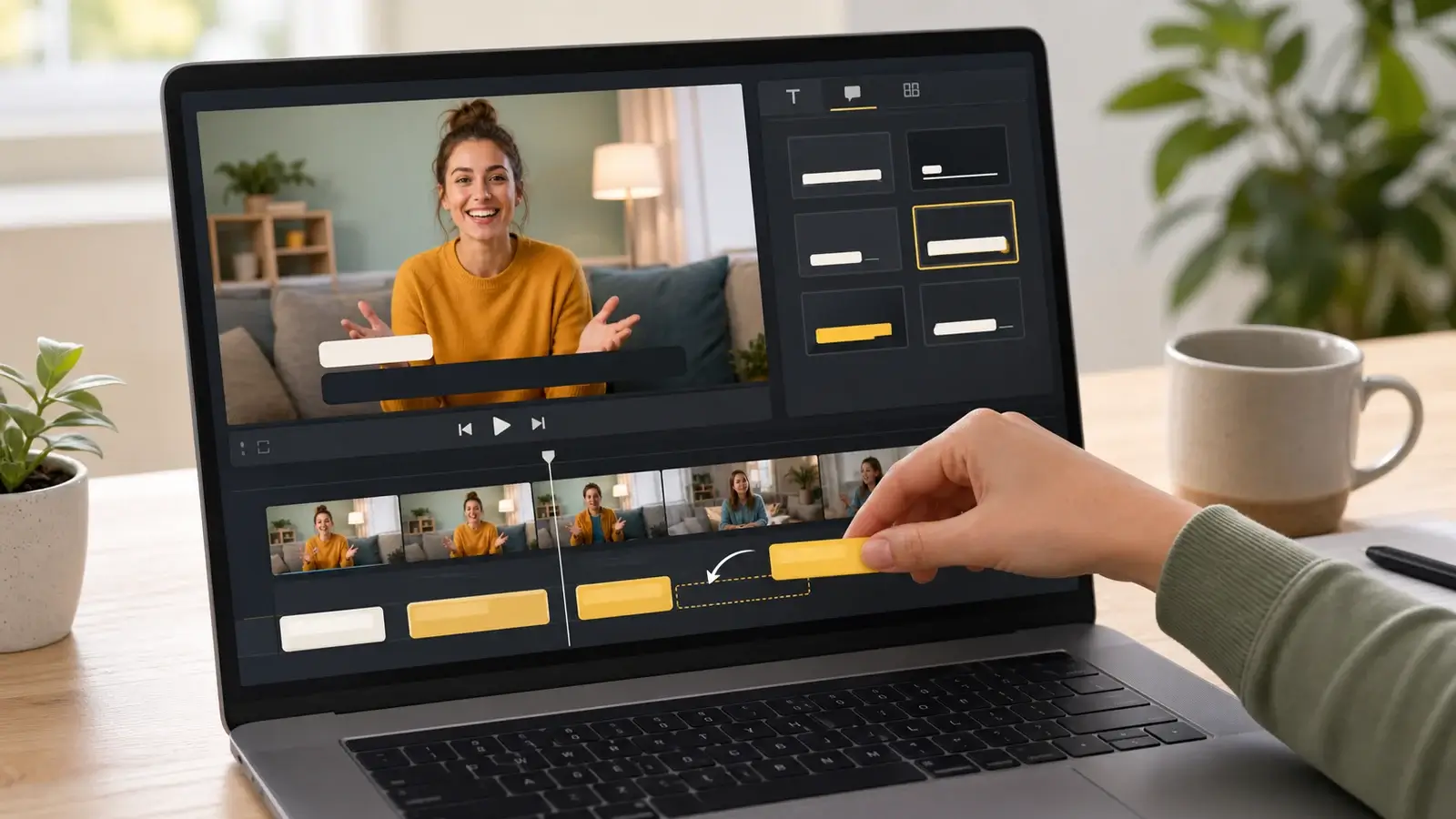
How to add captions in iMovie
Learn how to add caption-like text in iMovie, what the app can and cannot do, and how to keep captions readable.
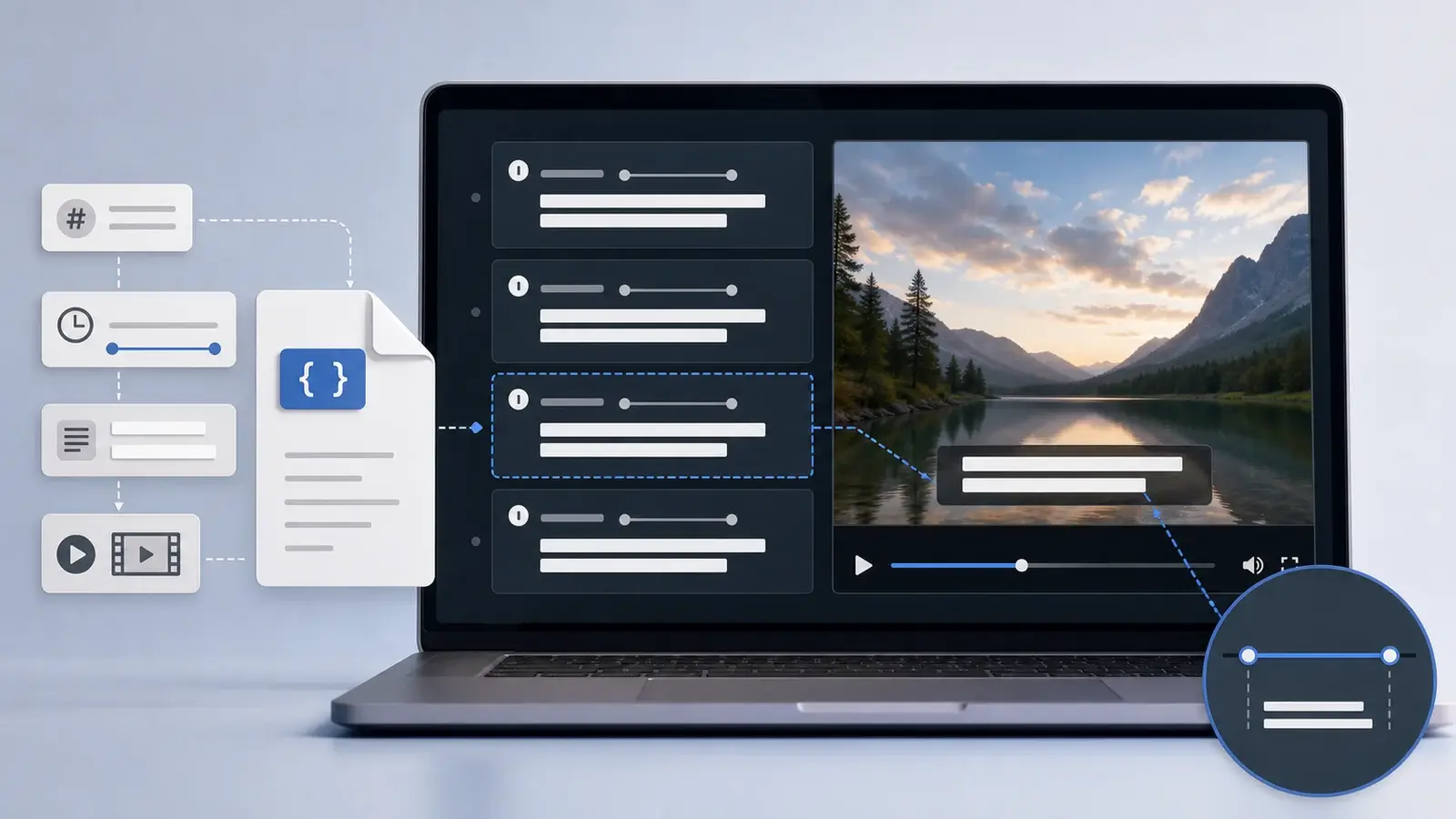
What is an SRT file?
Learn what an SRT file is, what its timestamps mean, and how this plain text subtitle format is commonly used.